Introduction & Overview
OneMCP is a Model Context Protocol (MCP) server that runs inside WordPress. Version 1.0.0 speaks streamable HTTP at wp-json/onemcp/v1/mcp. Clients authenticate with a WordPress application password.
Every ability runs inside WordPress. The client connects to this site. OneMCP does not send the tool call through a hosted service. OneMCP Pro is a separate plugin for page builders, SEO, SMTP, cache, stores, and backups.
Key Highlights
- Native Streamable HTTP Endpoint: Standard MCP endpoint at
wp-json/onemcp/v1/mcpwith session management. - 30 Pro integrations: Seven page builders, five SEO plugins, six SMTP plugins, eight cache plugins, WooCommerce, Easy Digital Downloads, Backuply, and Duplicator.
- WordPress Abilities API: Integrates natively with the core WordPress Abilities API (
wp_abilities_api_initandwp_abilities_api_categories_init). - Defaults: WordPress core tools start on. Other write tools stay off until an administrator turns them on. Any tool can be turned off.
- Audit Logging: Every AI tool execution is logged into a dedicated database table (
{prefix}onemcp_log).
System Requirements
Before installing OneMCP, verify that your server meets the following minimum prerequisites:
- WordPress: 6.0 or higher. Tested up to 7.1.
- PHP: 7.0 or higher for OneMCP. OneMCP Pro requires PHP 7.4 or higher.
- Web Server: Apache (with
mod_rewrite), Nginx, LiteSpeed, or OpenLiteSpeed. - Permalinks: Pretty permalinks enabled (e.g.
/%postname%/). WordPress REST API must be accessible. - SSL / HTTPS: Strongly recommended in production for secure Application Passwords over Basic Auth.
Installation & Setup
Installing OneMCP takes less than two minutes:
- Log in to your WordPress dashboard.
- Go to Plugins → Add New → Upload Plugin and upload the OneMCP ZIP, or copy the
onemcpfolder intowp-content/plugins/. - Click Activate. OneMCP is not on WordPress.org yet.
- A menu named OneMCP appears in the sidebar. To add Pro, upload and activate
onemcp-proas well. Pro requires OneMCP.
Alternatively, install via Composer or manual archive upload:
# Copy the plugin into WordPress, then activate it
wp plugin activate onemcp

# Optional Pro add-on
wp plugin activate onemcp-pro
Authentication & Application Passwords
OneMCP uses standard HTTP Basic Authentication powered by native WordPress Application Passwords. This allows you to generate revokable, isolated credentials specifically for your AI assistants without sharing your real administrative password.
Generating Credentials via Admin UI
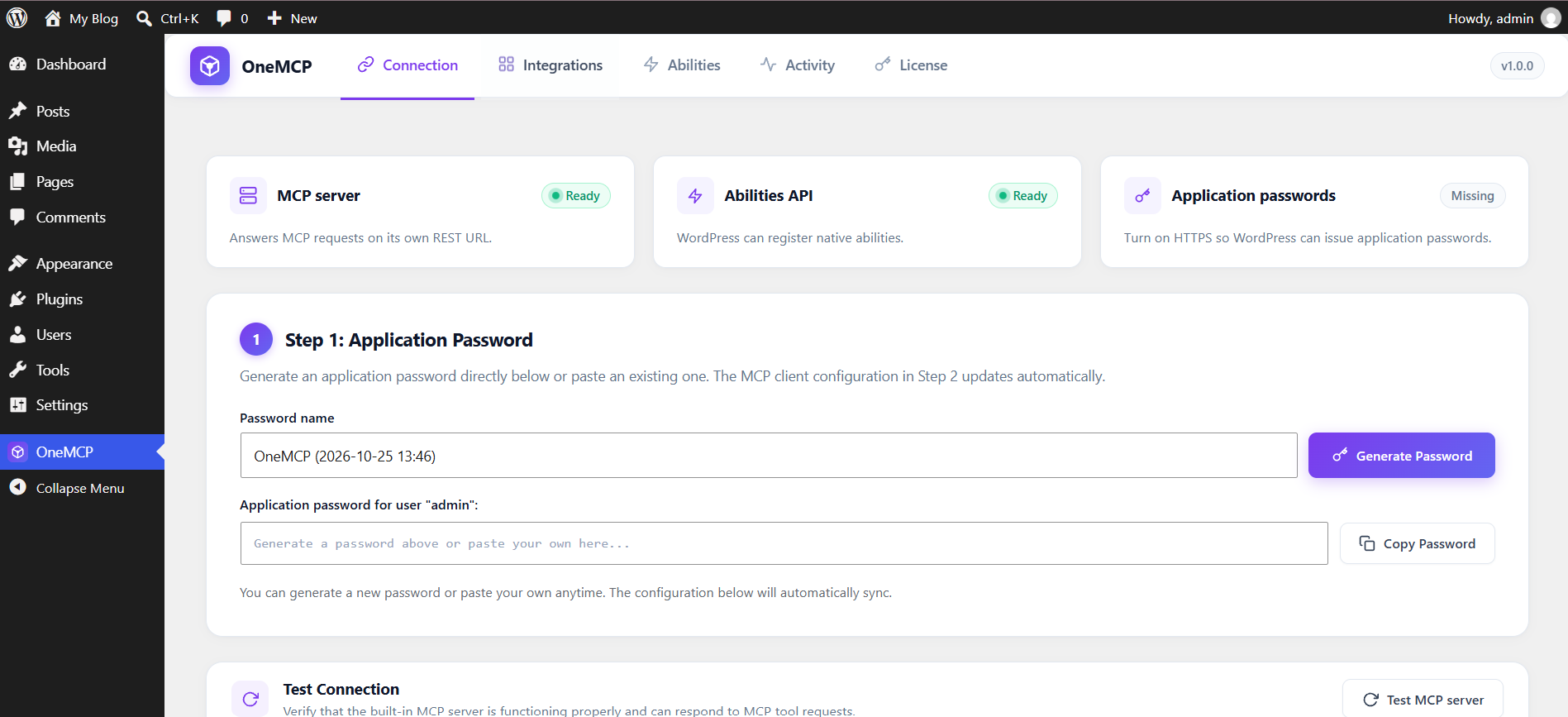
- Go to OneMCP → Connection in your WordPress dashboard.
- Under the Application Password card, click the Generate Password button.
- The plugin will generate a secure 24-character application password and provide:
- The clean plain-text password
- A pre-encoded
Authorization: Basic <TOKEN>string - Ready-to-paste JSON and command configurations tailored to your site URL
Testing Your Endpoint with cURL
You can verify that your endpoint and credentials are functioning correctly with a simple HTTP JSON-RPC call:
curl -X POST https://your-site.com/wp-json/onemcp/v1/mcp \
  -H "Content-Type: application/json" \
  -H "Authorization: Basic YWRtaW46WTRzZCBKa09wIExrTTEgUXdlcg==" \
  -d '{
    "jsonrpc": "2.0",
    "id": 1,
    "method": "tools/call",
    "params": {
      "name": "onemcp_get-site-info",
      "arguments": {}
    }
  }'
Protocol Architecture & Session Lifecycle
OneMCP follows the official Model Context Protocol (MCP) streamable HTTP transport specification:
- Endpoint:
POST /wp-json/onemcp/v1/mcp - Supported Protocol Versions:
2025-11-25,2025-06-18,2025-03-26,2024-11-05 - Session Management: Supports
Mcp-Session-Idheaders for stateful client tracking with a 12-hour session TTL. - Supported RPC Methods:
initialize: Negotiates protocol version, server identity, and capabilities.tools/list: Returns all currently enabled abilities formatted as MCP tool definitions with JSON Schemas.tools/call: Executes an ability with parameter validation and capability checks.
AI Client Setup Guides
Open OneMCP → Connection, generate an application password, and pick the client. The snippets below match what that screen copies. Replace the site URL and the Basic token. The token is base64(username:application-password), with spaces removed from the password.
1. Claude Desktop
Save this in claude_desktop_config.json. On macOS that file is ~/Library/Application Support/Claude/claude_desktop_config.json. On Linux it is ~/.config/Claude/claude_desktop_config.json. Restart Claude Desktop.
{
  "mcpServers": {
    "onemcp": {
      "command": "npx",
      "args": [
        "-y",
        "mcp-remote",
        "https://your-site.com/wp-json/onemcp/v1/mcp",
        "--header",
        "Authorization: Basic <TOKEN>"
      ]
    }
  }
}
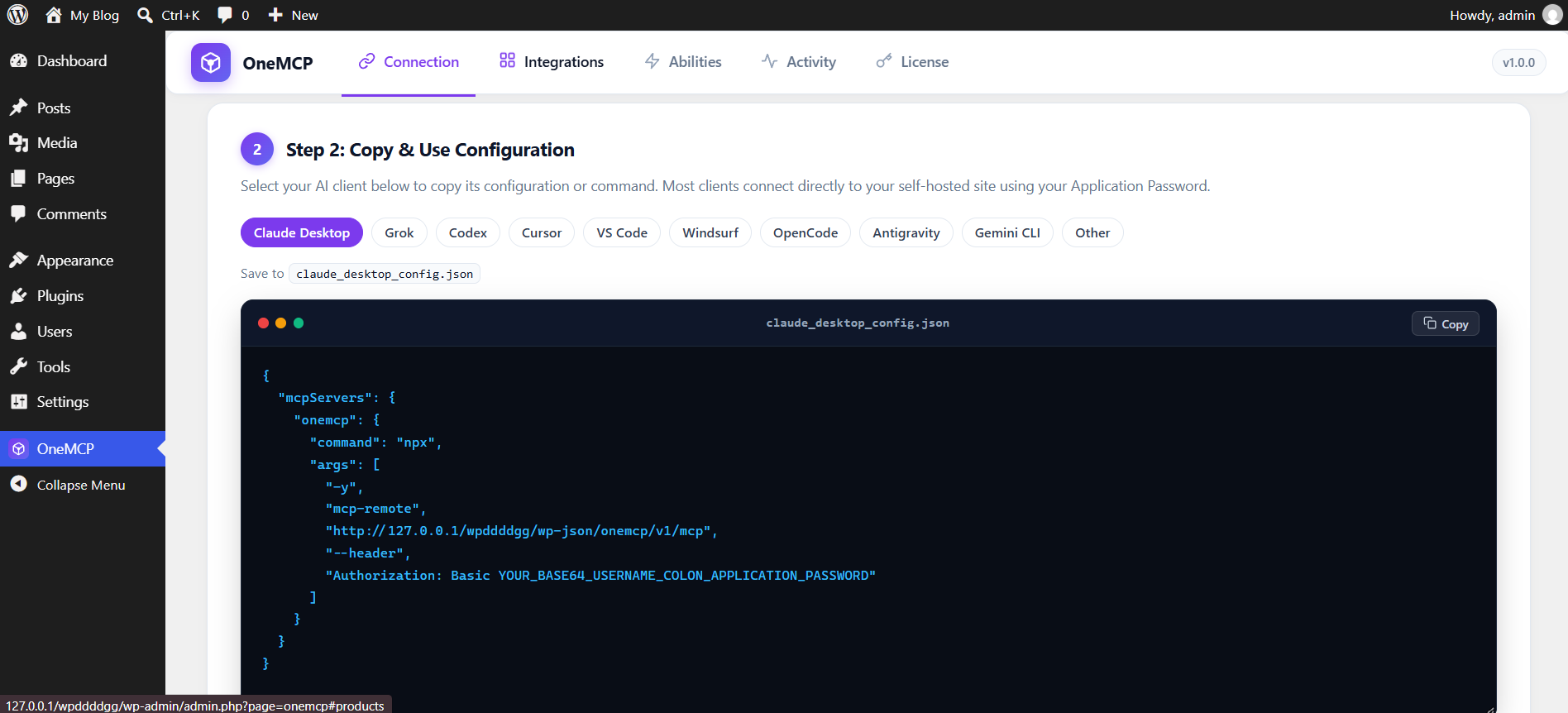
mcpServers configuration using mcp-remote with your site's endpoint and credentials pre-filled.2. Grok
Run this in a terminal. Grok saves the server in ~/.grok/config.toml. Add --scope project before the server name to keep it in the current project. Check it with grok mcp doctor onemcp.
grok mcp add --transport http onemcp "https://your-site.com/wp-json/onemcp/v1/mcp" --header "Authorization: Basic <TOKEN>"
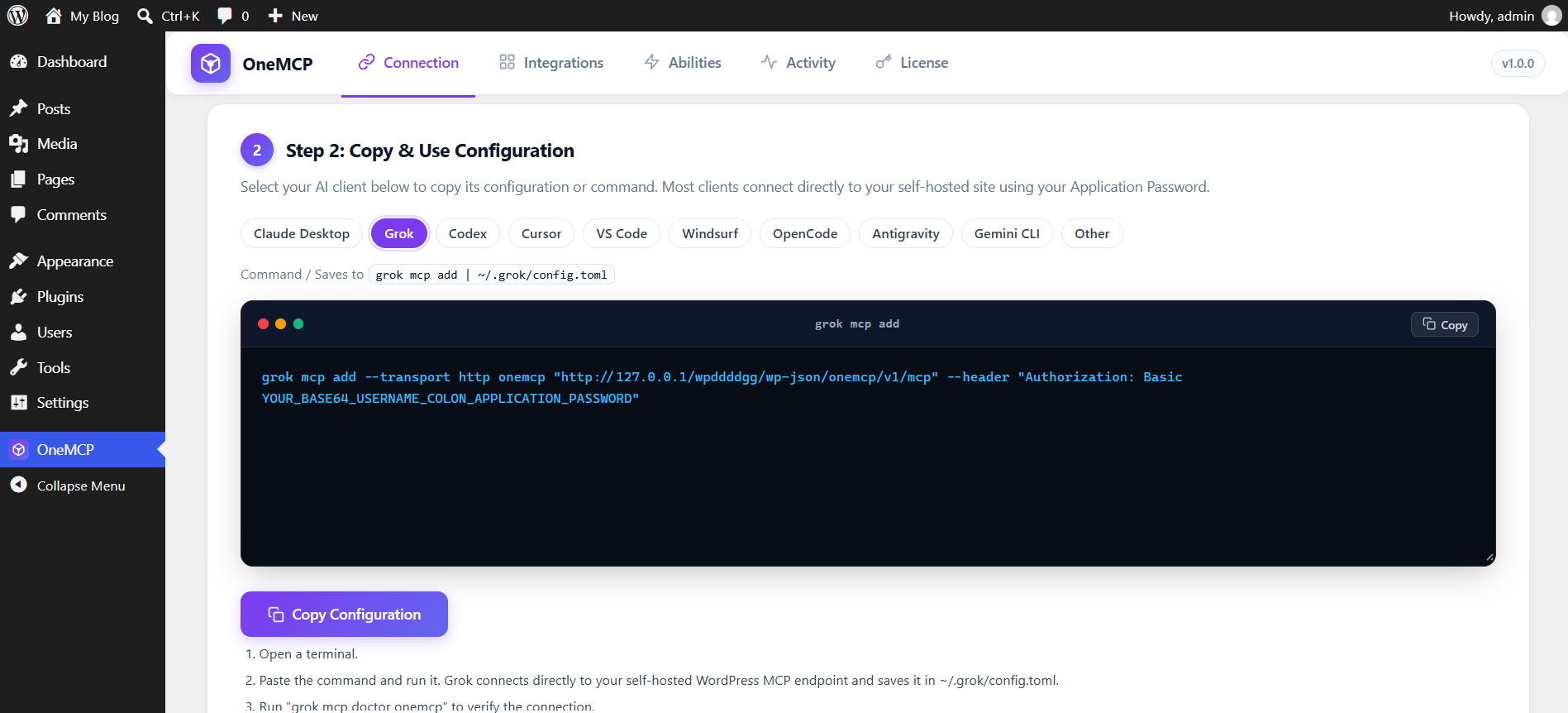
grok mcp add command with streamable HTTP transport and basic authentication.3. Codex
Paste this into ~/.codex/config.toml, or .codex/config.toml inside a trusted project. This server uses Basic authentication, so leave bearer_token unset.
[mcp_servers."onemcp"]
url = "https://your-site.com/wp-json/onemcp/v1/mcp"
http_headers = { Authorization = "Basic <TOKEN>" }
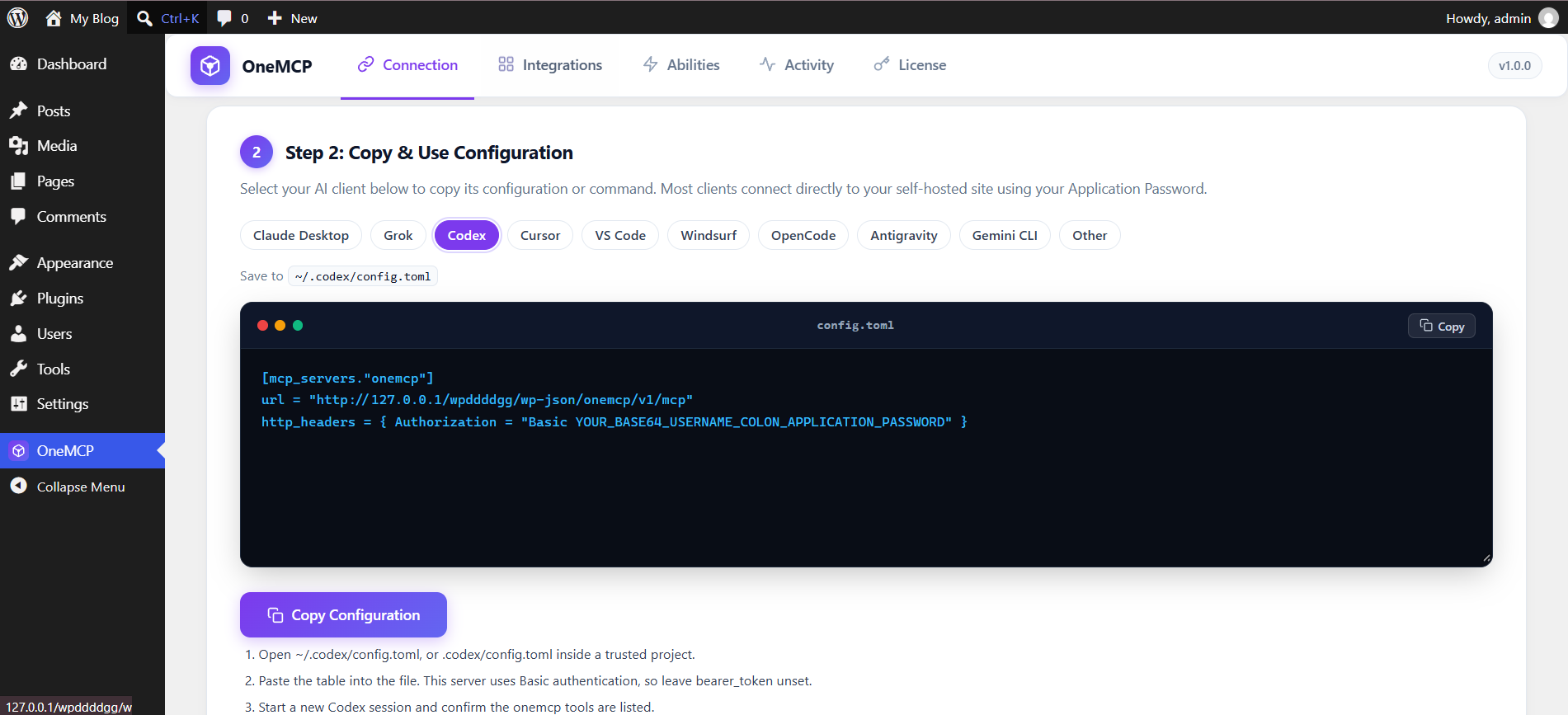
~/.codex/config.toml or workspace configs.4. Cursor
Save this as .cursor/mcp.json for one project, or ~/.cursor/mcp.json for every project. Enable onemcp in Cursor's MCP list.
{
  "mcpServers": {
    "onemcp": {
      "url": "https://your-site.com/wp-json/onemcp/v1/mcp",
      "headers": {
        "Authorization": "Basic <TOKEN>"
      }
    }
  }
}
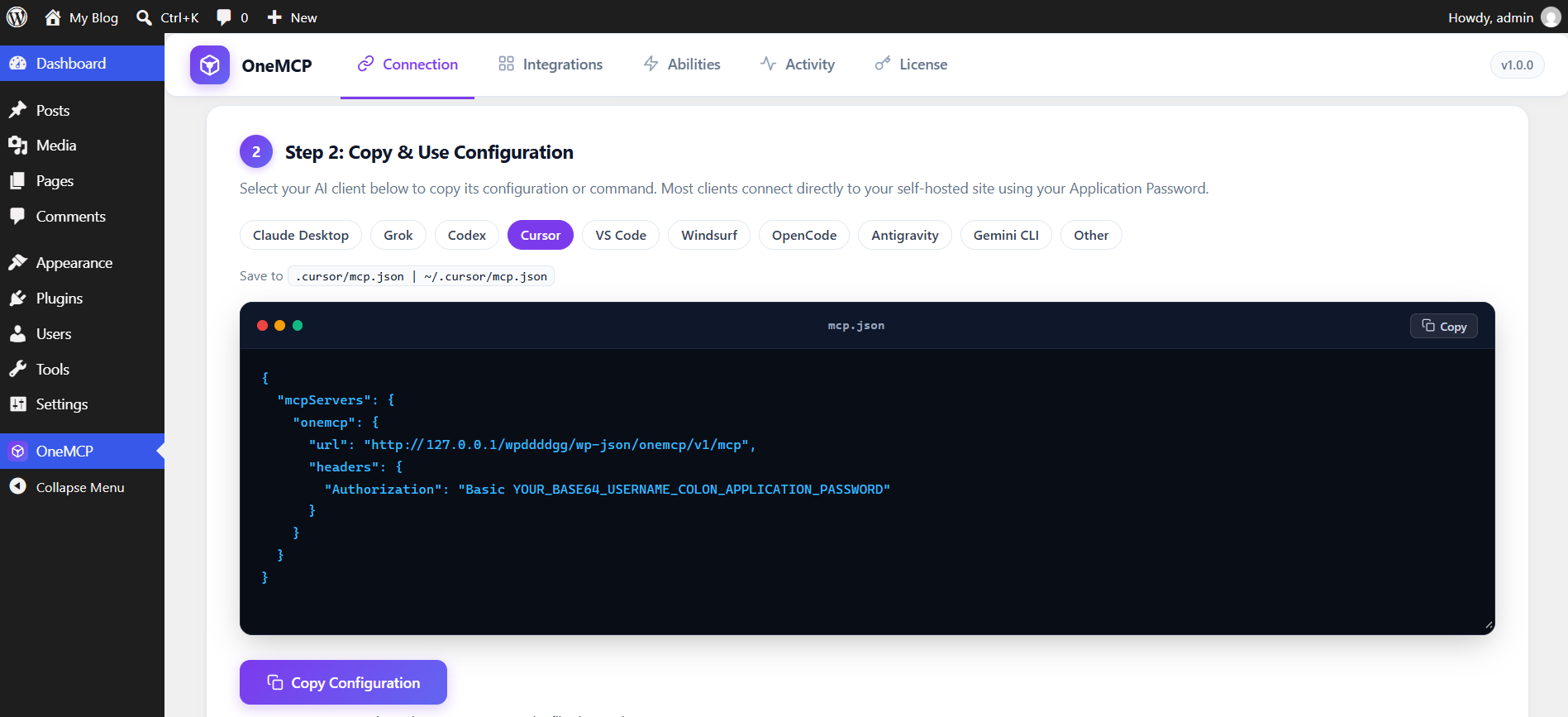
mcpServers object for Cursor's project or global MCP configuration.5. VS Code and GitHub Copilot
Save this as .vscode/mcp.json. GitHub Copilot in VS Code uses the same file.
{
  "servers": {
    "onemcp": {
      "type": "http",
      "url": "https://your-site.com/wp-json/onemcp/v1/mcp",
      "headers": {
        "Authorization": "Basic <TOKEN>"
      }
    }
  }
}
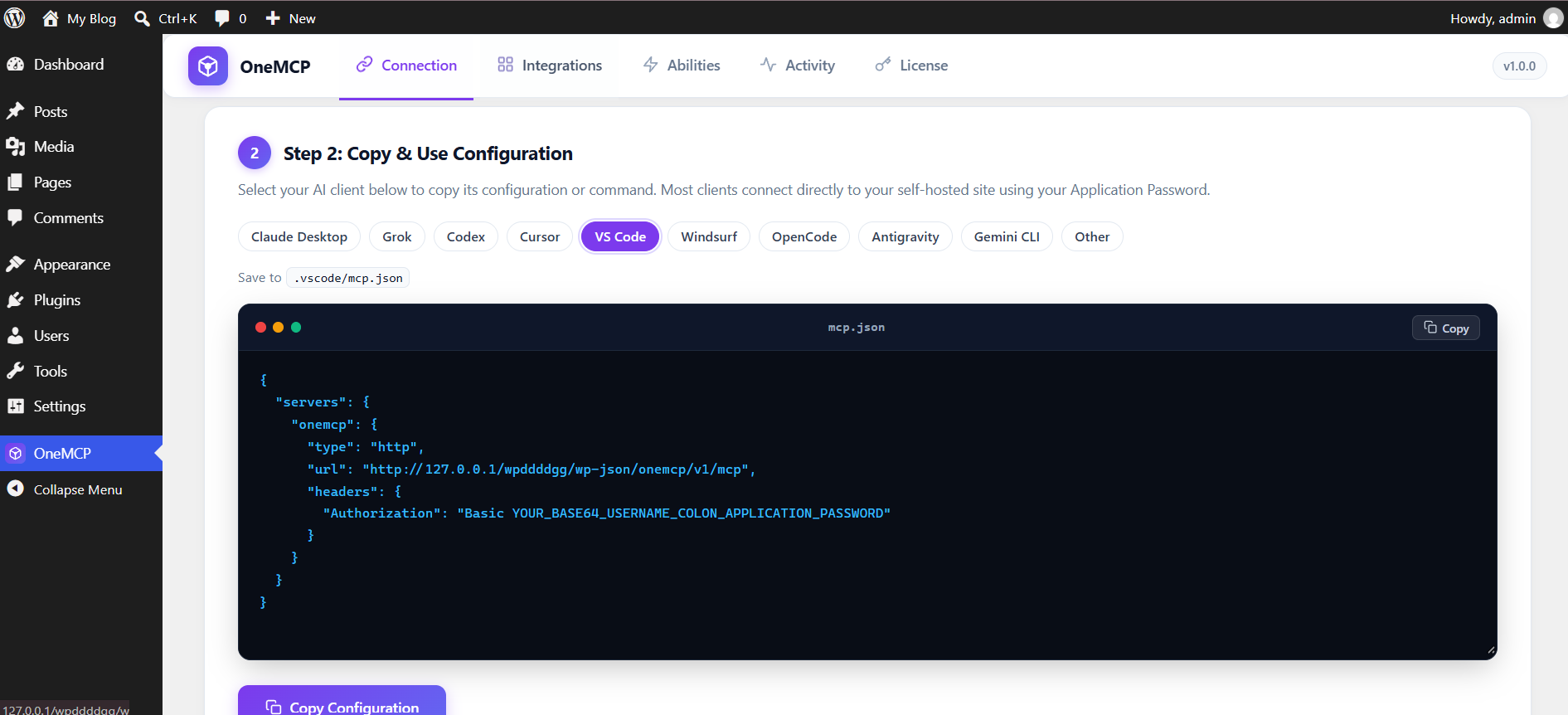
servers schema with "type": "http" compatible with VS Code and GitHub Copilot.6. Windsurf
Save this as ~/.codeium/windsurf/mcp_config.json. Windsurf reads serverUrl for a remote HTTP server.
{
  "mcpServers": {
    "onemcp": {
      "serverUrl": "https://your-site.com/wp-json/onemcp/v1/mcp",
      "headers": {
        "Authorization": "Basic <TOKEN>"
      }
    }
  }
}
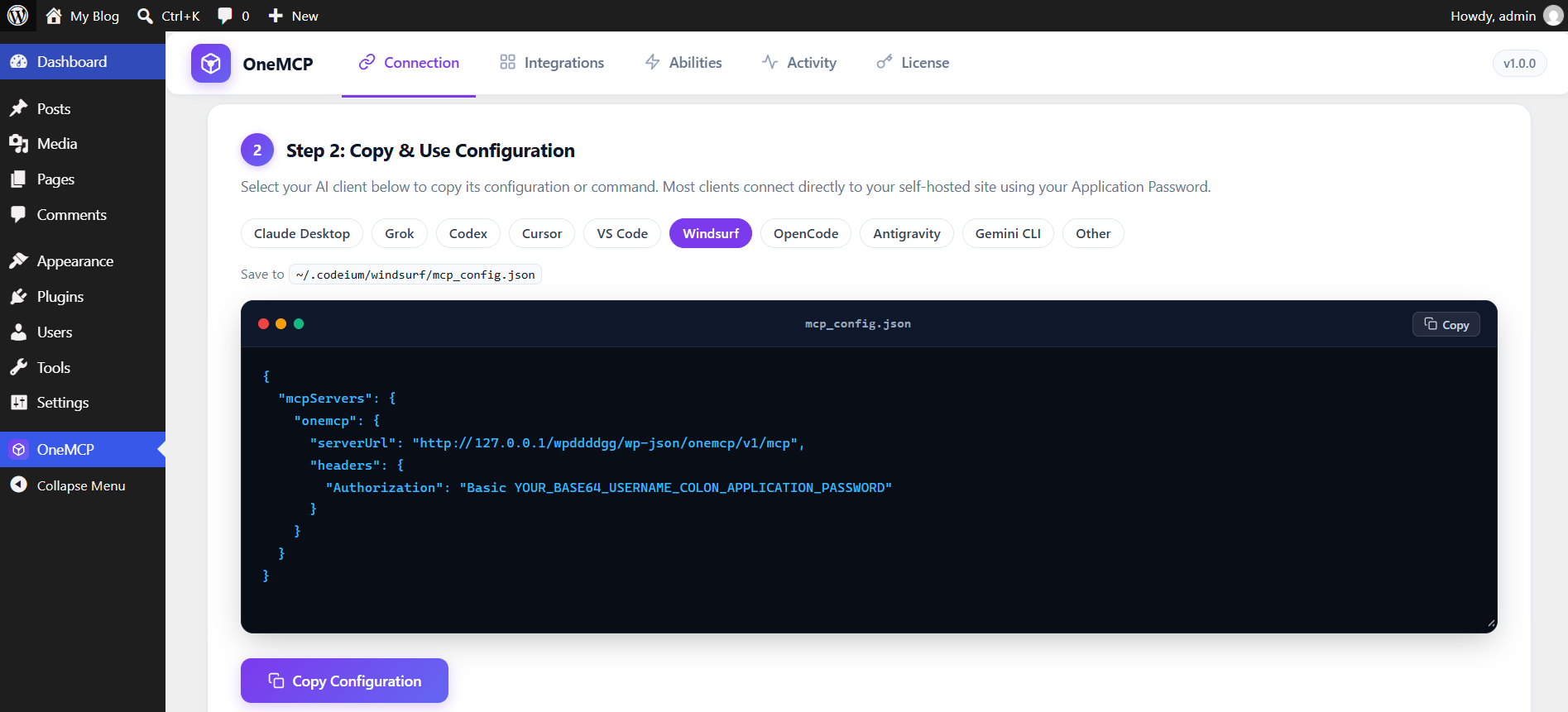
serverUrl syntax for streamable remote HTTP servers.7. OpenCode
Save this as opencode.json in the project, or ~/.config/opencode/opencode.json for every project.
{
  "$schema": "https://opencode.ai/config.json",
  "mcp": {
    "onemcp": {
      "type": "remote",
      "url": "https://your-site.com/wp-json/onemcp/v1/mcp",
      "enabled": true,
      "headers": {
        "Authorization": "Basic <TOKEN>"
      }
    }
  }
}
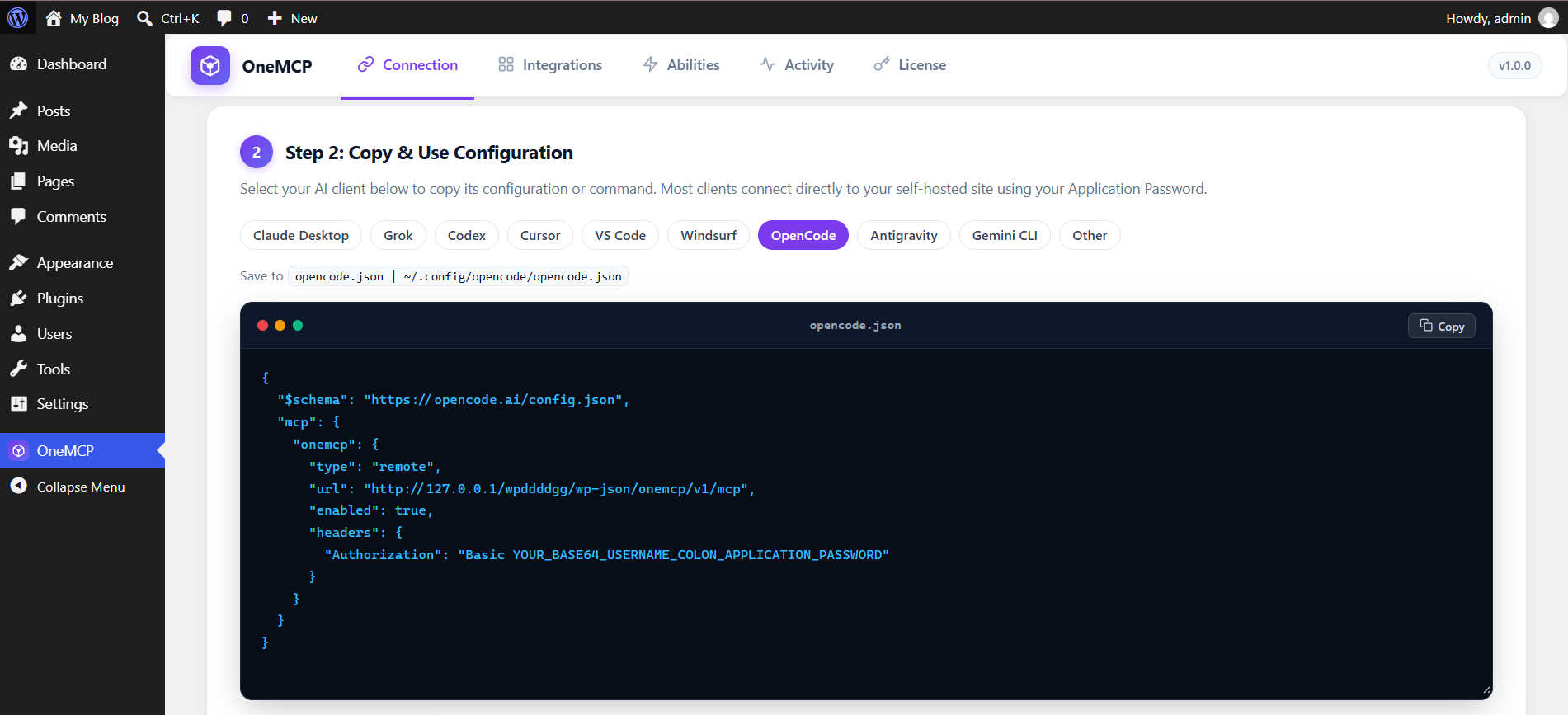
$schema-compliant JSON for OpenCode remote MCP servers.8. Antigravity
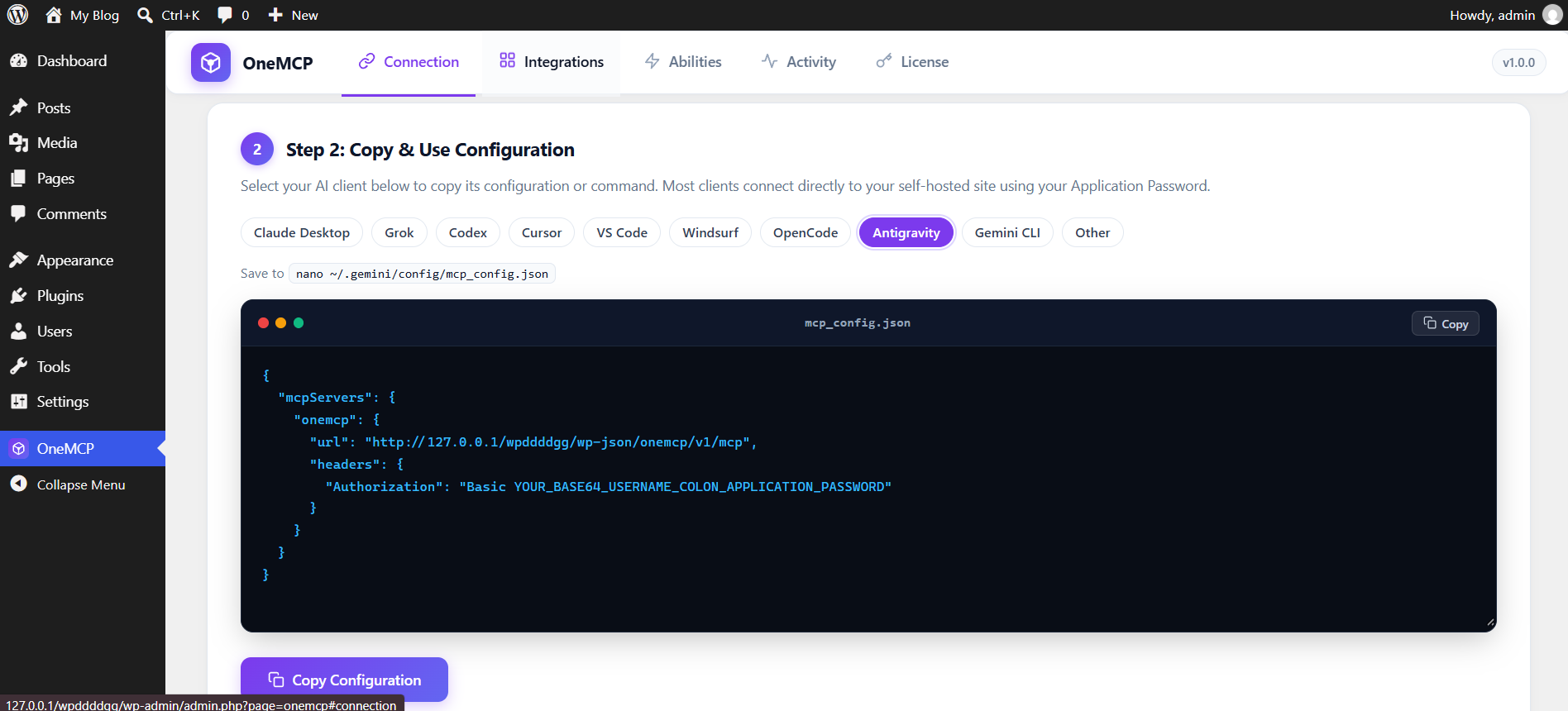
Save this as ~/.gemini/config/mcp_config.json. Restart Antigravity and enable onemcp.
{
  "mcpServers": {
    "onemcp": {
      "url": "https://your-site.com/wp-json/onemcp/v1/mcp",
      "headers": {
        "Authorization": "Basic <TOKEN>"
      }
    }
  }
}
9. Gemini CLI
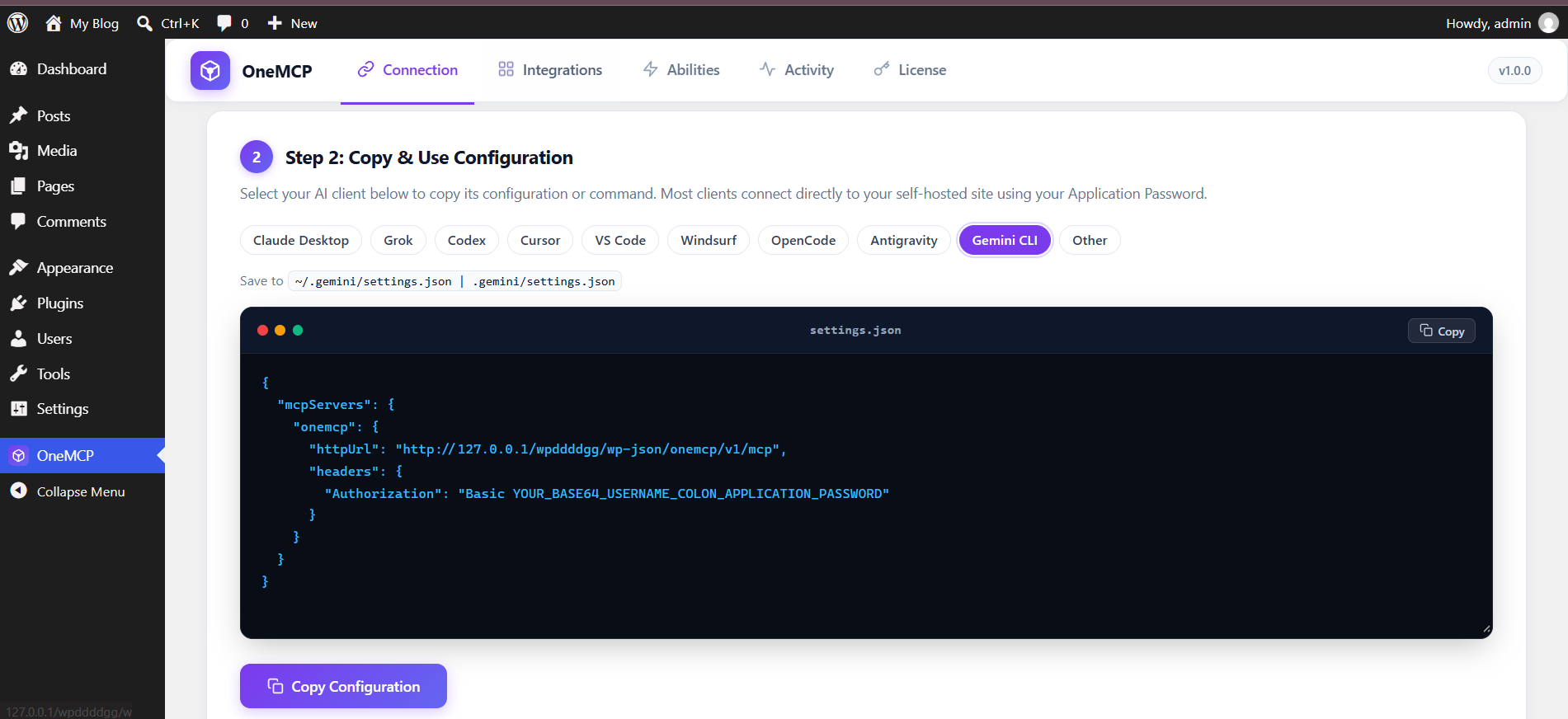
Save this in ~/.gemini/settings.json, or .gemini/settings.json in the project. httpUrl selects streamable HTTP. A url field would select the older SSE transport.
{
  "mcpServers": {
    "onemcp": {
      "httpUrl": "https://your-site.com/wp-json/onemcp/v1/mcp",
      "headers": {
        "Authorization": "Basic <TOKEN>"
      }
    }
  }
}
httpUrl for native streamable HTTP transport.10. Other & Custom MCP Clients
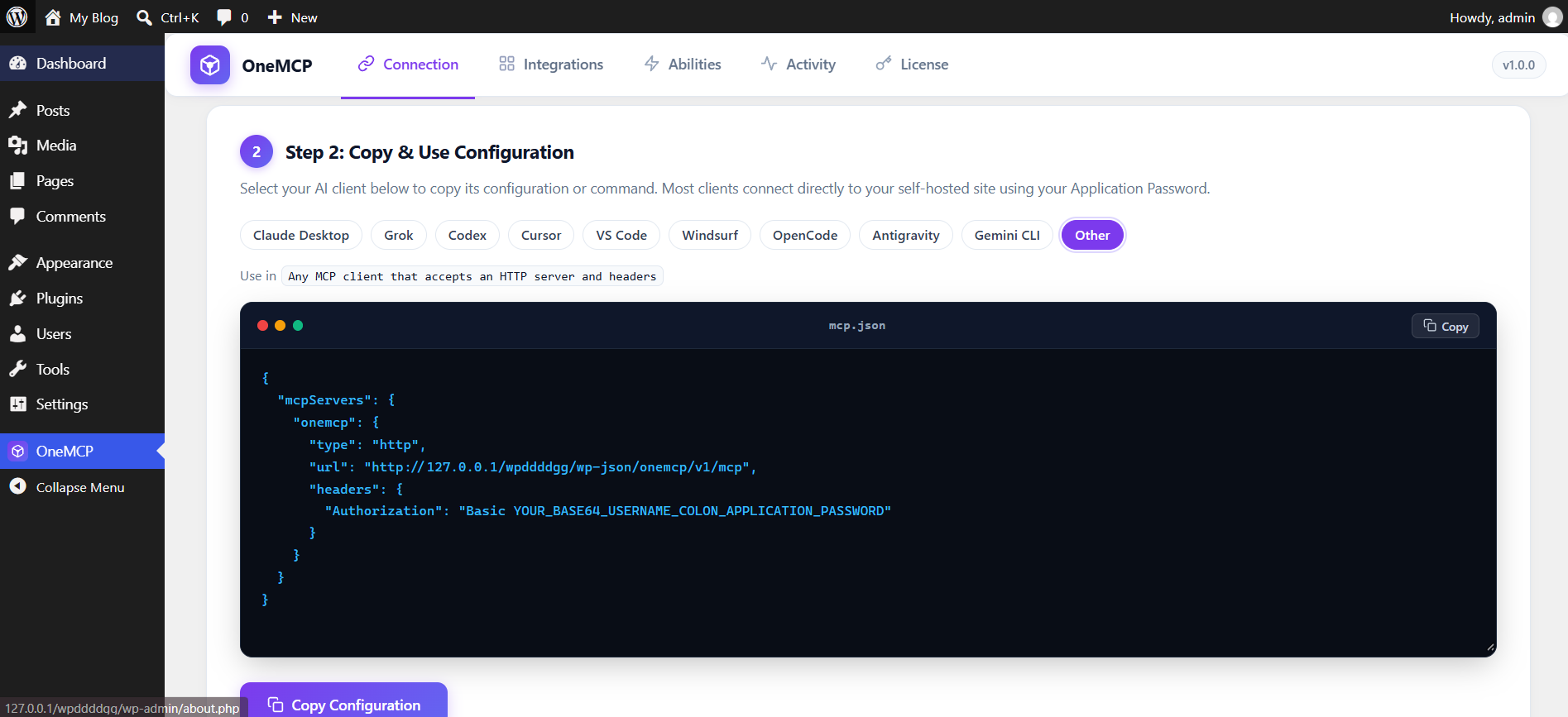
For any other client that connects via Model Context Protocol HTTP transport, configure using standard headers:
{
  "mcpServers": {
    "onemcp": {
      "type": "http",
      "url": "https://your-site.com/wp-json/onemcp/v1/mcp",
      "headers": {
        "Authorization": "Basic <TOKEN>"
      }
    }
  }
}
Abilities Reference: WordPress Core (`onemcp-wordpress`)
Core abilities manage posts, pages, media, taxonomies, comments, navigation menus, and administrative metadata.
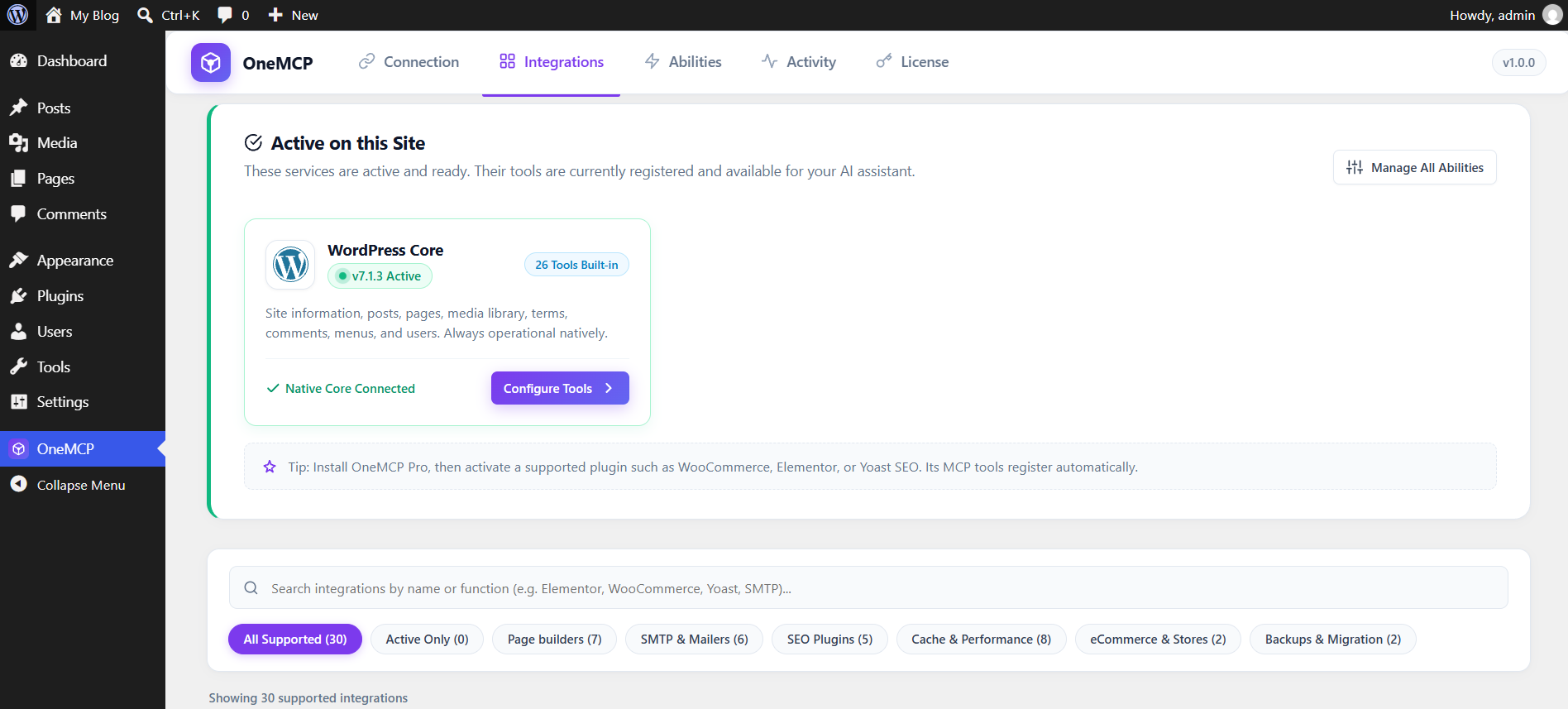
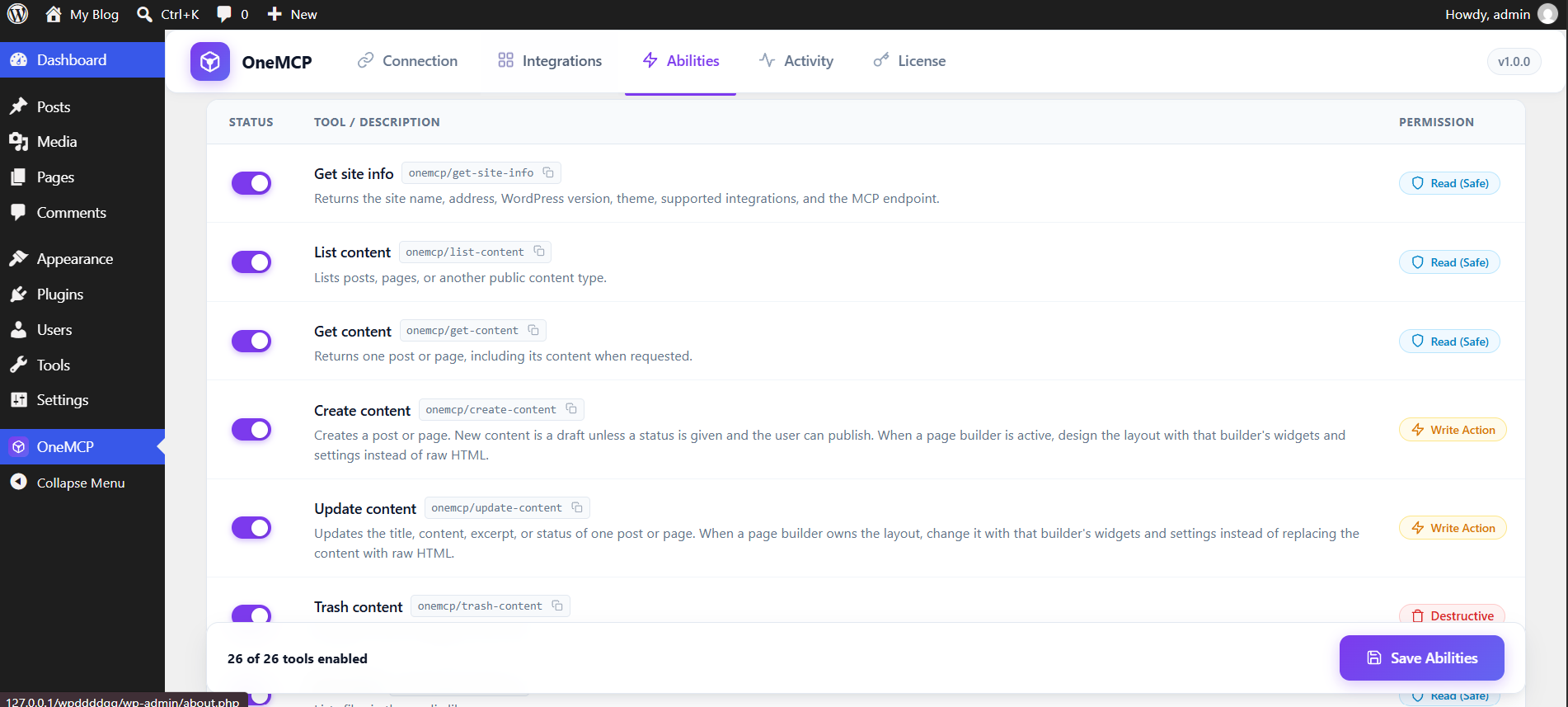
Each line is one ability in the free plugin.
- Get site info. Site name, address, WordPress version, theme, active integrations, and the MCP endpoint.
- List content. Posts, pages, and other public content, filtered by status or search.
- Get content. One post or page, including the body when you ask for it.
- Create content. A new post or page. It stays a draft unless a status is set. A visual layout uses the page builder.
- Update content. Title, body, excerpt, or status of one post or page.
- Trash content. Moves one post or page to the trash.
- List media. Files in the media library.
- Get media. One file, with its URL and alt text.
- Update media. Title, caption, or alt text of one file.
- Add media from a URL. Downloads a public file into the media library.
- List terms. Categories, tags, or terms from another taxonomy.
- List comments. Comments on the site, or on one post.
- Moderate a comment. Approves, holds, marks as spam, or trashes one comment.
- List plugins. Installed plugins and which ones are active.
- List themes. Installed themes and the active theme.
- List users. Accounts on the site. Passwords and sessions are left out.
- List taxonomies. Public taxonomies such as categories and tags.
- Create a term. A category, tag, or other term.
- Update a term. Name, slug, or description of one term.
- Set content terms. Replaces the categories or tags on one post.
- Get content meta. Custom fields on one post. Passwords, tokens, and API keys are left out.
- Update content meta. Sets or clears one custom field. Secret keys are refused.
- List menus. Navigation menus.
- List menu items. The links in one menu.
- Create a menu. An empty navigation menu.
- Add a menu item. A custom link on a menu.
Abilities Reference: Page Builders (`onemcp-builders`)
These abilities load from OneMCP Pro for Pagelayer, Elementor, SeedProd, Divi, Bricks, Beaver Builder, and Breakdance. Pagelayer publishes its own editor abilities. The other builders share one set of document, widget, and template abilities.
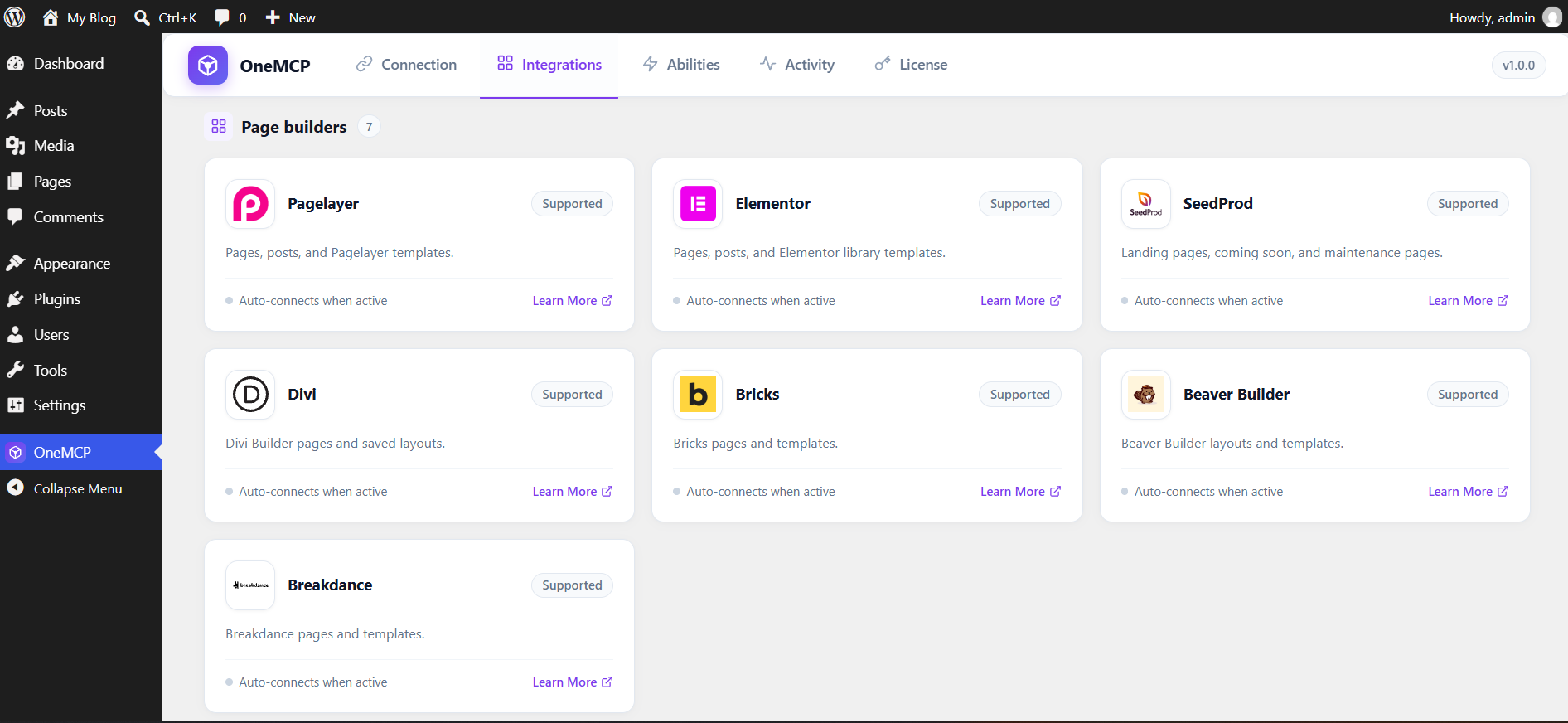
Pagelayer
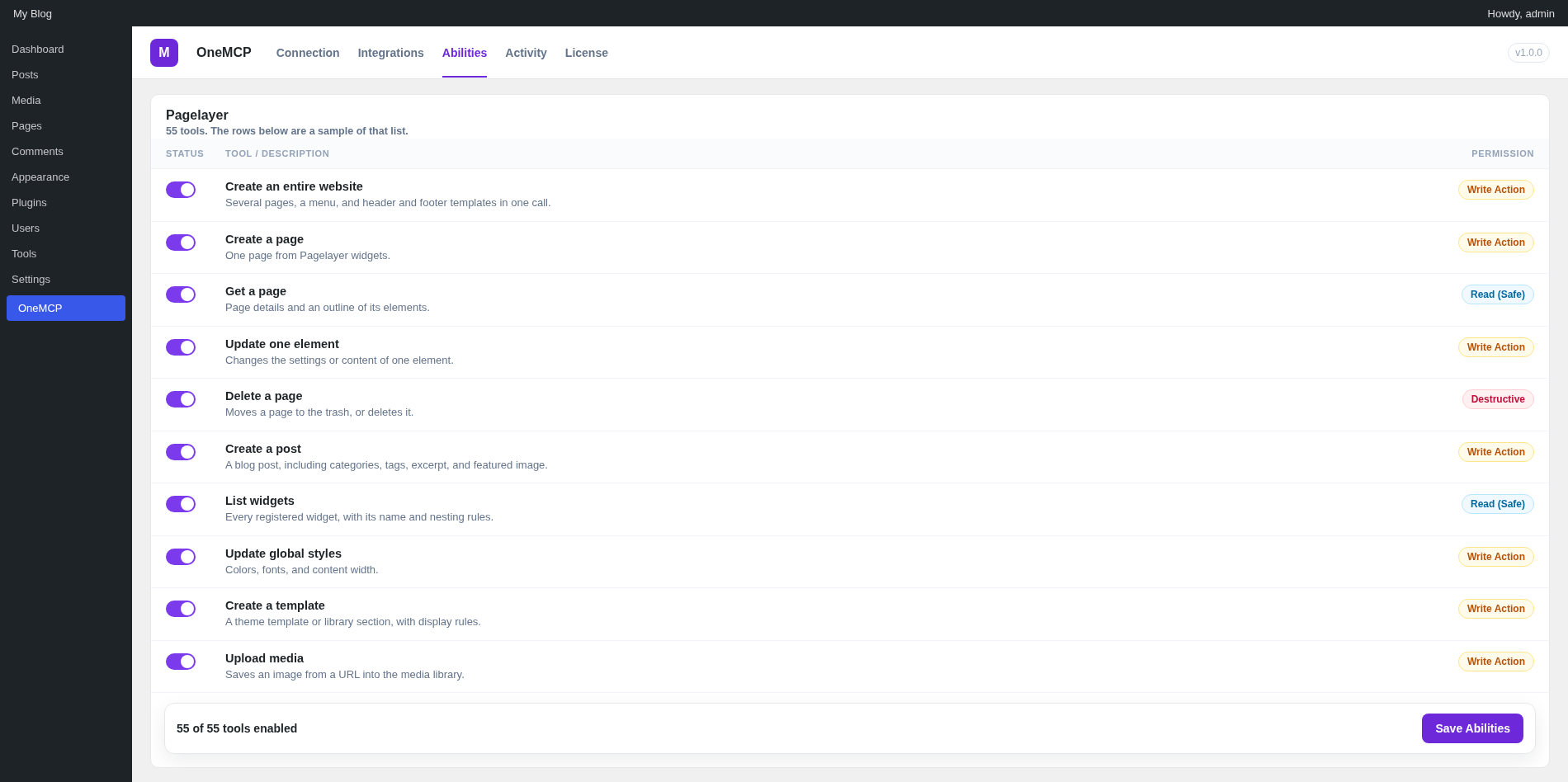
- Create an entire website. Several pages, a menu, and header and footer templates in one call.
- Create a page. One page from Pagelayer widgets.
- Update a page. Title, status, or the whole layout.
- Get a page. Page details and an outline of its elements.
- List pages. Pages built with Pagelayer.
- Publish a page. Sets the page status to publish.
- Duplicate a page. Copies a page and gives every element a new id.
- Delete a page. Moves a page to the trash, or deletes it.
- Preview a page. The live preview URL.
- Validate a page. Checks widgets, structure, and styles before you rely on the layout.
- Add design sections. Appends new sections to a page.
- Change element styles. Updates style settings on elements by id or widget.
- Read the data guide. How page data, color tokens, and widget settings work.
- Find elements. Locates elements on a page by widget or text.
- Update one element. Changes the settings or content of one element.
- Add an element. Inserts a widget into a container.
- Delete an element. Removes one element from a page.
- Move an element. Moves an element to another place in the layout.
- Duplicate an element. Copies an element and its children.
- Begin a transaction. Saves the layout before a series of edits.
- Commit a transaction. Keeps the edits and drops the backup.
- Roll back a transaction. Restores the layout from that backup.
- Create a post. A blog post built with Pagelayer, including categories, tags, excerpt, and featured image.
- Update a post. Title, layout, categories, tags, excerpt, or status.
- Get a post. The post, its terms, excerpt, featured image, and layout.
- List posts. Blog posts built with Pagelayer.
- Publish a post. Publishes a draft.
- Duplicate a post. Copies a post and gives every element a new id.
- Delete a post. Moves a post to the trash, or deletes it.
- List widgets. Every registered widget, with its name and nesting rules.
- Get a widget schema. The settings that belong to one widget.
- Get common styles. Background, border, font, spacing, and animation settings shared by every widget.
- Get widget examples. A sample of one widget, or of several.
- Browse library sections. Prebuilt hero, feature, header, footer, and other sections.
- Import a library section. Inserts one of those sections into a page.
- Read a public page. Title, headings, paragraphs, and image URLs from a URL. It does not copy the layout.
- Get several widget schemas. Settings for up to 12 widgets in one call.
- Get theme settings. Theme options, header and footer assignments, and global styles.
- Get global styles. Colors, fonts, content width, and style presets.
- Update global styles. Colors, fonts, and content width.
- List icons. Font Awesome and Pagelayer icons.
- List fonts. Google fonts, system fonts, and custom fonts.
- Get color presets. Starting palettes you can apply to the site.
- Get spacing presets. Width, padding, gaps, radius, and shadow scales.
- Search photos. Licensed photos, when a Pexels API key is saved in Pagelayer.
- List templates. Header, footer, archive, single, and other theme templates.
- Create a template. A theme template or library section, with display rules.
- Update a template. Title, layout, or display rules of a theme template.
- Delete a template. Removes one theme template.
- Save a section. Stores a page section in the local library.
- Insert a template. Places a saved section into a page.
- List menus. Navigation menus, their items, and theme locations.
- Create or update a menu. Builds a menu from a list of items, including mega menu content.
- Delete a menu. Removes one navigation menu.
- Upload media. Saves an image from a URL into the media library.
Elementor, SeedProd, Divi, Bricks, Beaver Builder, and Breakdance
Each of these builders has the same abilities. Divi shortcodes use the module admin label, or its numeric position, as the element id.
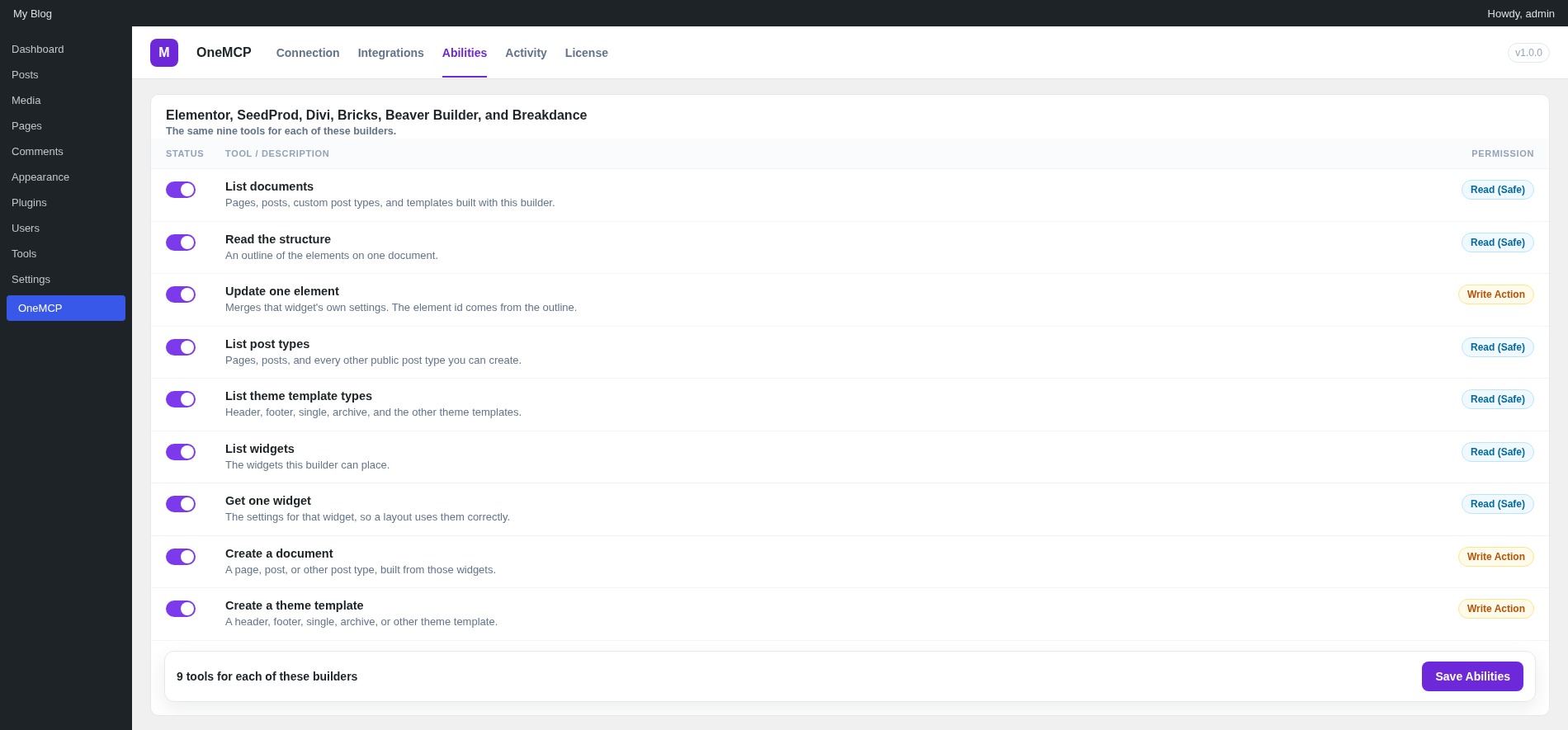
- List documents. Pages, posts, custom post types, and templates built with this builder.
- Read the structure. An outline of the elements on one document.
- Update one element. Merges that widget's own settings. The element id comes from the outline.
- List post types. Pages, posts, and every other public post type you can create.
- List theme template types. Header, footer, single, archive, and the other theme templates.
- List widgets. The widgets this builder can place.
- Get one widget. The settings for that widget, so a layout uses them correctly.
- Create a document. A page, post, or other post type, built from those widgets. New documents are drafts unless a status is set.
- Create a theme template. A header, footer, single, archive, or other theme template, built from those widgets.
Abilities Reference: WooCommerce (`onemcp-woocommerce`)
WooCommerce tools load from OneMCP Pro: products, variations, attributes, categories, tags, orders, notes, customers, coupons, reviews, refunds, sales, and store settings. Writes stay off until an administrator enables them.
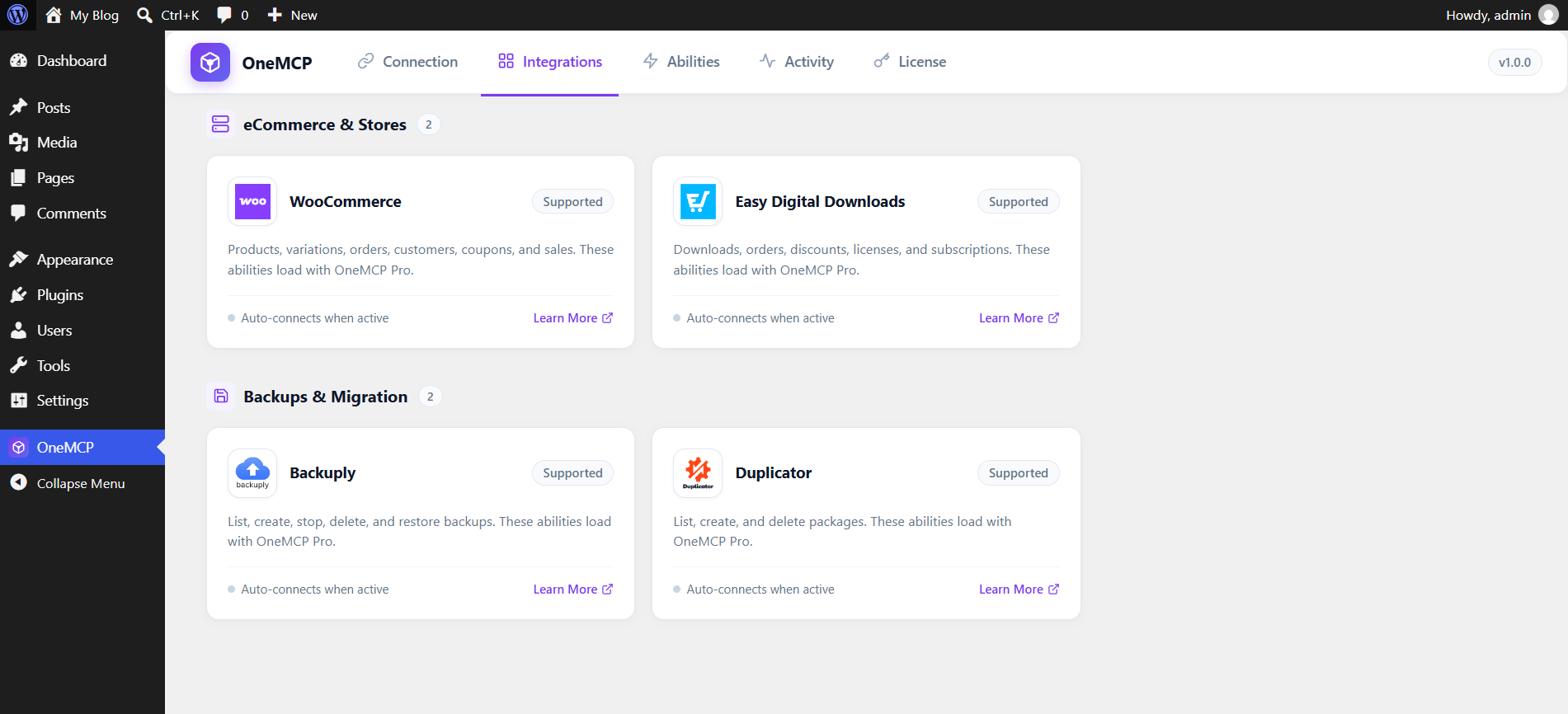
WooCommerce
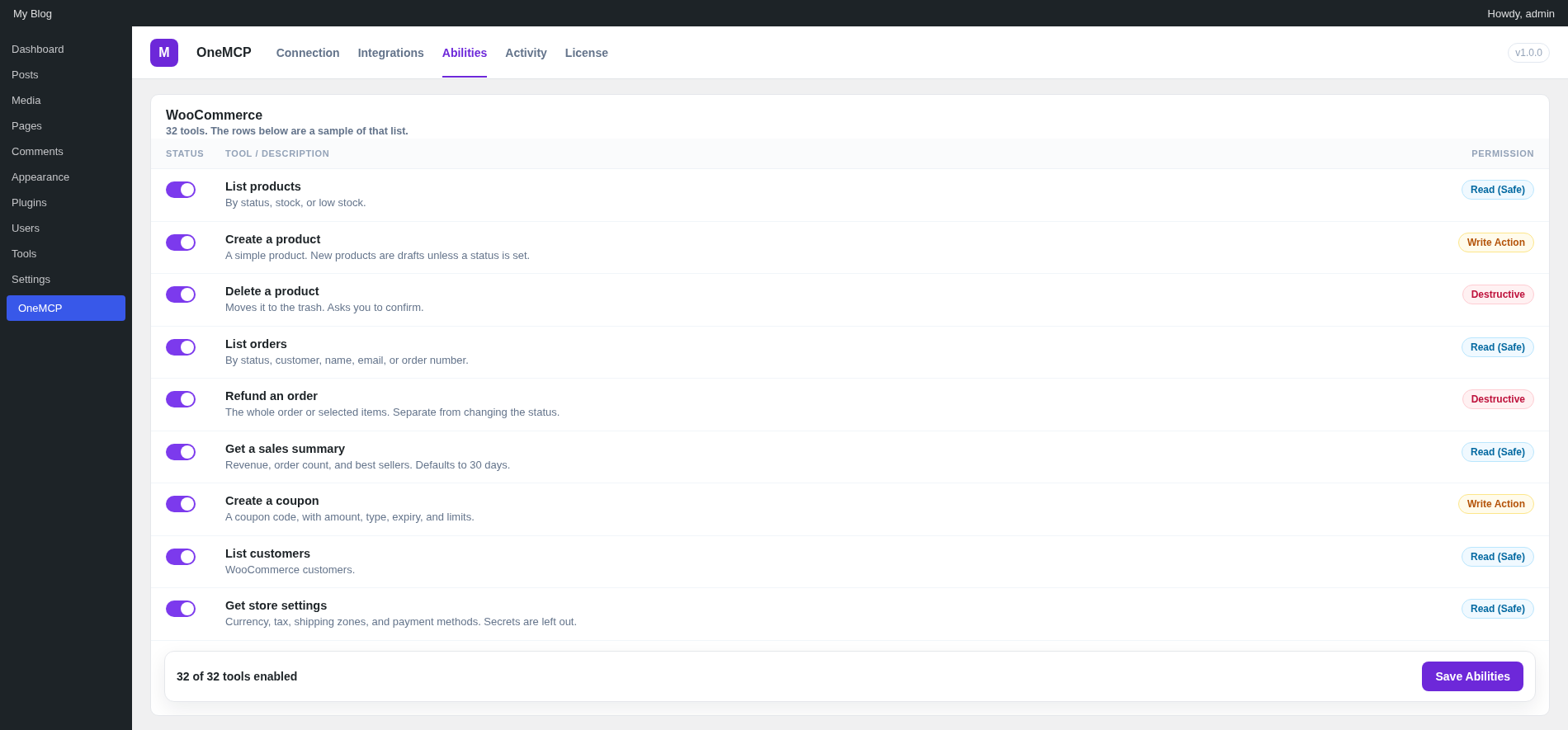
- List products. By status, stock, or low stock.
- Get a product. Price, stock, and description.
- Create a product. A simple product. New products are drafts unless a status is set.
- Update a product. The product fields you send.
- Delete a product. Moves it to the trash. Asks you to confirm.
- List variations. Price and stock for one variable product.
- Create a variation. One size, colour, or other option. The parent becomes a variable product if it is not one yet.
- Update a variation. Price, sale dates, stock, SKU, image, or status.
- List product categories. WooCommerce product categories.
- Create a product category. A category, with an optional parent.
- List product tags. WooCommerce product tags.
- Create a product tag. A tag for products.
- List attributes. Global attributes such as size and colour, with their terms.
- Create an attribute. A global product attribute.
- Create an attribute term. A value such as Red or Large.
- Set product attributes. Replaces the attributes on one product.
- List orders. By status, customer, name, email, or order number.
- Get an order. The order and its line items.
- Update order status. Changes one order to processing, completed, cancelled, or another status.
- List order notes. Notes on one order.
- Add an order note. A private note, or a note the customer can see.
- Refund an order. The whole order or selected items. This is separate from changing the status.
- Get a sales summary. Revenue, order count, and best sellers. Defaults to 30 days and reads at most 100 orders.
- List coupons. WooCommerce coupons.
- Create a coupon. A coupon code, with amount, type, expiry, and limits.
- Update a coupon. Amount, type, description, expiry, or limits.
- Delete a coupon. Moves it to the trash. Asks you to confirm.
- List customers. WooCommerce customers.
- Get a customer. Spend totals and recent orders.
- List product reviews. Rating and moderation status.
- Moderate a product review. Approves, holds, marks as spam, or trashes one review.
- Get store settings. Currency, tax, shipping zones, and payment methods. Secrets and API keys are left out.
Easy Digital Downloads
License and subscription abilities appear only while those extensions are active.
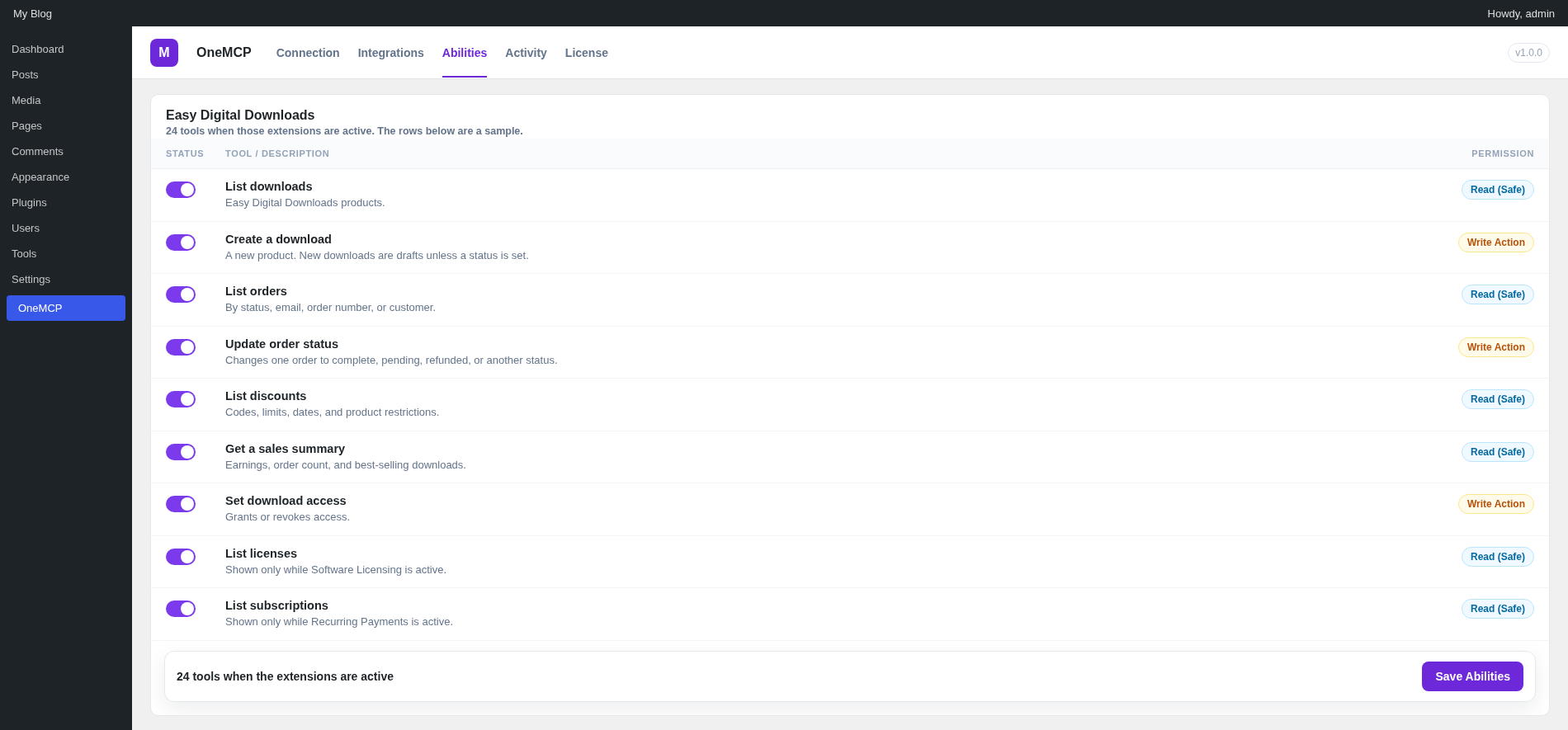
- List downloads. Easy Digital Downloads products.
- Get a download. Prices, files, and the download limit.
- Create a download. A new product. New downloads are drafts unless a status is set.
- Update a download. Title, content, status, prices, files, or download limit.
- List orders. By status, email, order number, or customer.
- Get an order. The order and the items purchased.
- Update order status. Changes one order to complete, pending, refunded, or another status.
- Update an order. Customer email or status. Totals and the payment key stay unchanged.
- Add an order note. A note on one order.
- List discounts. Codes, limits, dates, and product restrictions.
- Create a discount. A discount code. New codes are active unless you set them inactive.
- Update a discount. Code, amount, dates, limits, or product restrictions.
- Set download link expiration. How many hours a download link stays valid. Zero means the links do not expire.
- List customers. Easy Digital Downloads customers.
- Get a customer. Recent purchases and download history.
- Get a sales summary. Earnings, order count, and best-selling downloads.
- List download logs. File download activity, including the customer IP address.
- Set download access. Grants or revokes access. Granting without an order creates a manual completed order and does not email a receipt.
- List licenses. Software Licensing licenses. This tool appears only while that extension is active.
- Get a license. One license by id or key. This tool appears only while Software Licensing is active.
- Set license status. Active, inactive, disabled, or expired. This tool appears only while Software Licensing is active.
- List subscriptions. Recurring Payments subscriptions. This tool appears only while that extension is active.
- Get a subscription. One subscription. This tool appears only while Recurring Payments is active.
- Set subscription status. Changes a subscription. Cancelling can also cancel it at the payment gateway. This tool appears only while Recurring Payments is active.
Abilities Reference: SEO Suites (`onemcp-seo`)
Supports SiteSEO, Yoast SEO, Rank Math, All in One SEO, and SEOPress.
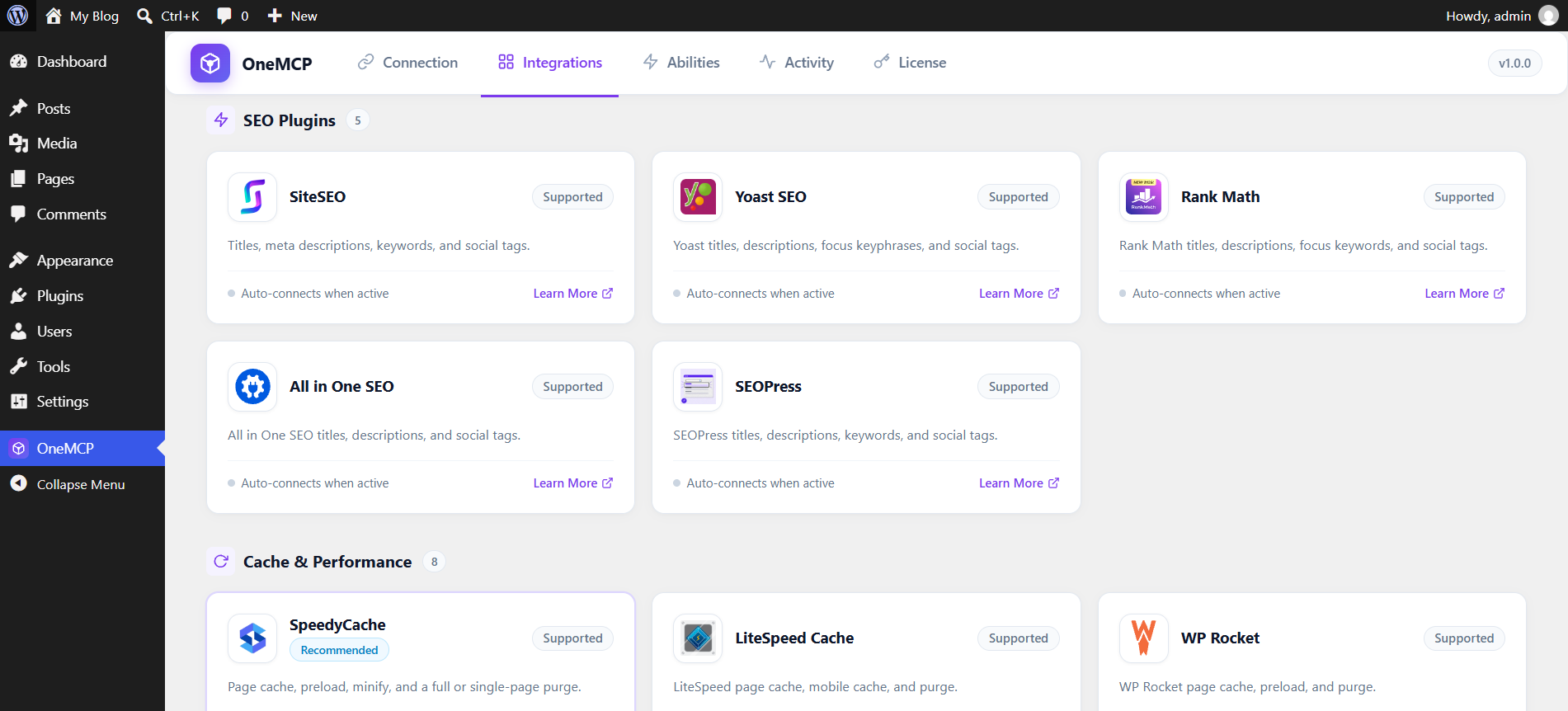
Each SEO plugin has the same two abilities. The fields you leave out stay as they are.
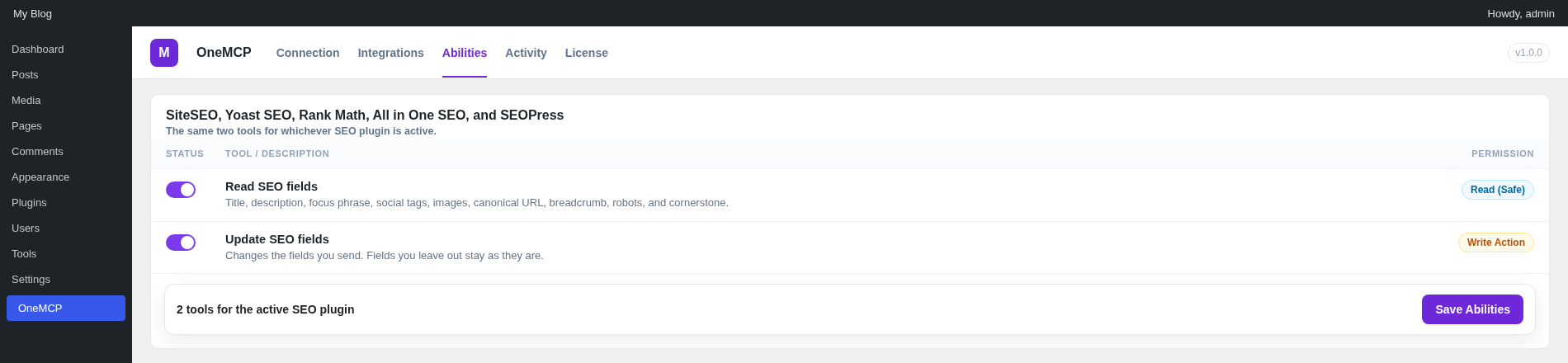
- Read SEO fields. Title, description, focus phrase, social tags, images, canonical URL, breadcrumb, robots flags, and the cornerstone flag on one post.
- Update SEO fields. Changes the SEO fields you send. Fields you leave out stay as they are.
Abilities Reference: SMTP (onemcp-smtp)
These abilities load from OneMCP Pro for GoSMTP, WP Mail SMTP, FluentSMTP, Easy WP SMTP, Post SMTP, and SMTP Mailer.
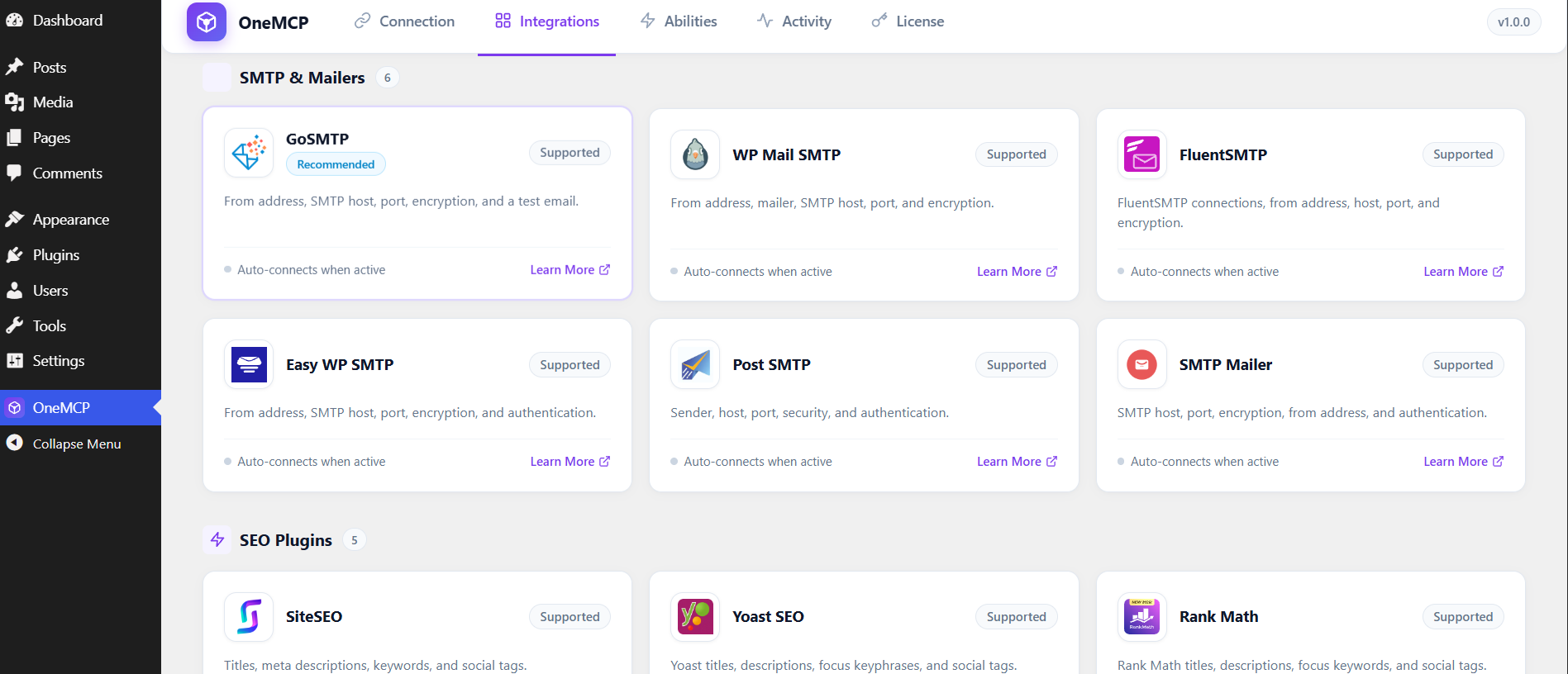
Each mailer has the same abilities. Passwords and API keys are left out. The test email uses whichever mailer is active.
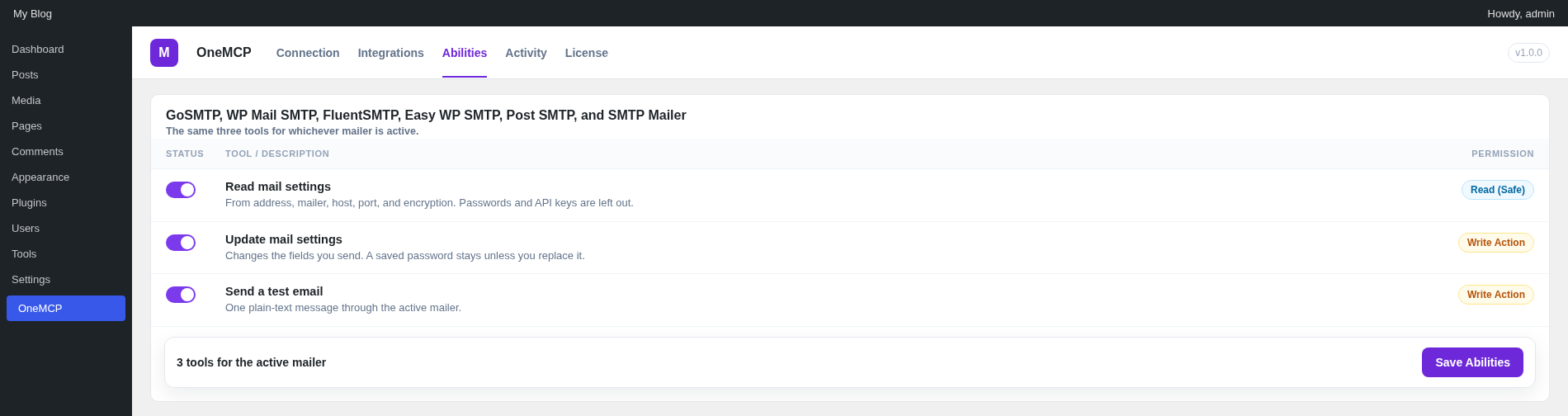
- Read mail settings. From address, mailer, host, port, and encryption. Passwords and API keys are left out.
- Update mail settings. Changes the fields you send. A saved password stays unless you replace it.
- Send a test email. One plain-text message through the active mailer.
Abilities Reference: Cache & Speed (`onemcp-cache`)
Supports SpeedyCache, LiteSpeed Cache, WP Rocket, WP Super Cache, W3 Total Cache, WP Fastest Cache, WP-Optimize, and SiteGround Optimizer.
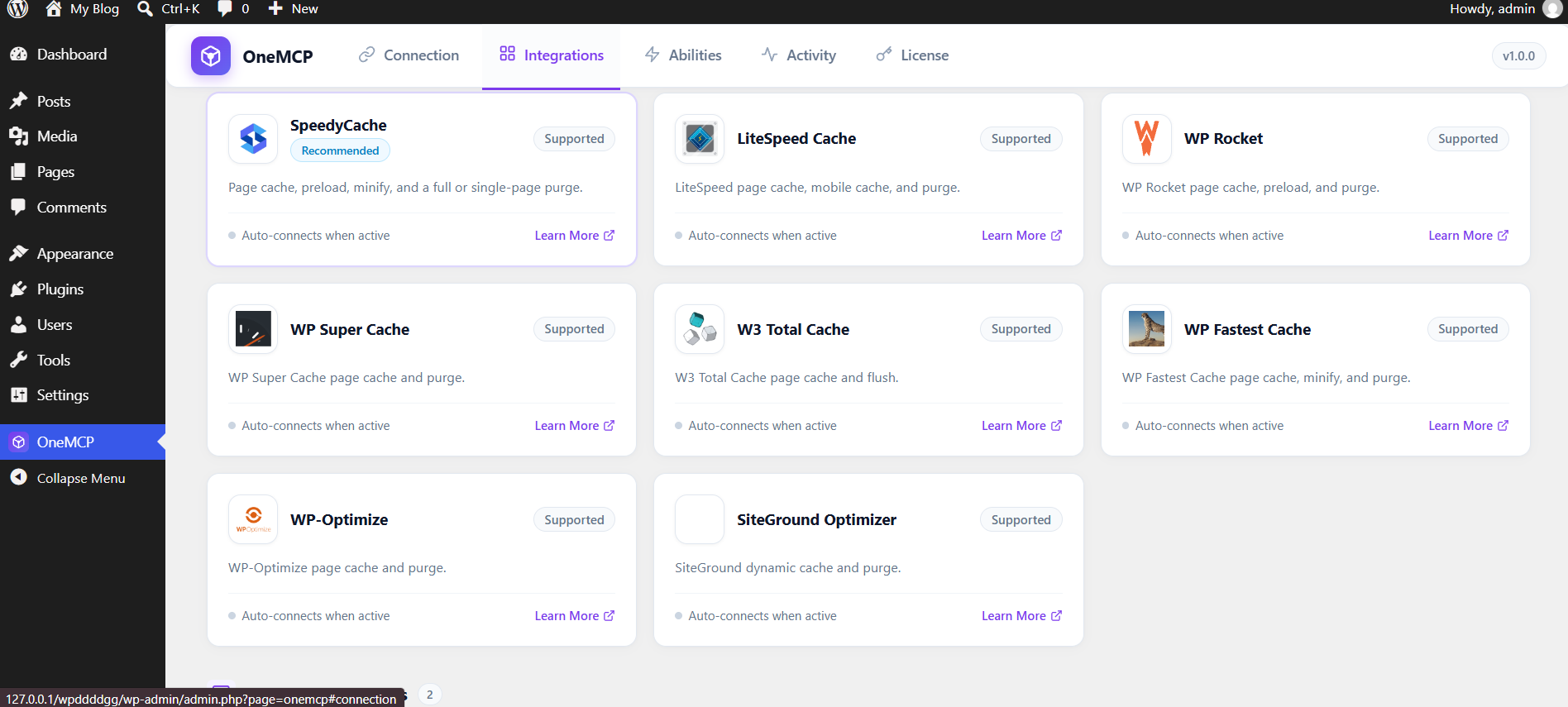
Each cache plugin can be read and purged on its own. The last two abilities run for every active cache plugin. SpeedyCache is first when it is active.
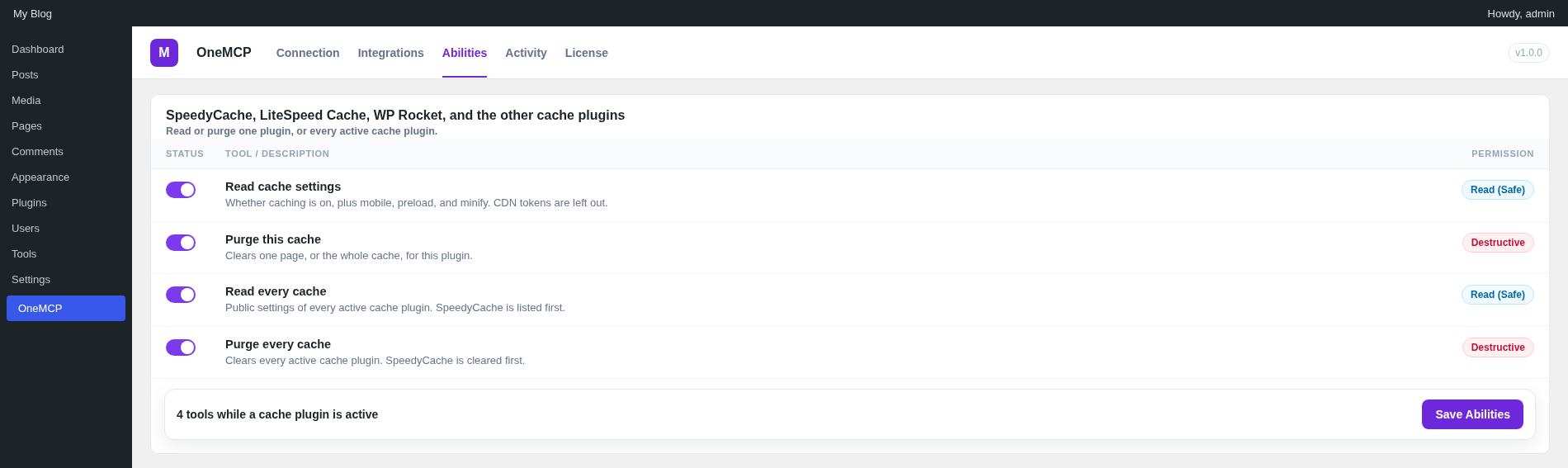
- Read cache settings. Whether caching is on, plus mobile, preload, and minify. CDN tokens are left out.
- Purge this cache. Clears one page, or the whole cache, for this plugin.
- Read every cache. Public settings of every active cache plugin. SpeedyCache is listed first when it is active.
- Purge every cache. Clears every active cache plugin, for one page or the whole site. SpeedyCache is cleared first when it is active.
Abilities Reference: Backups & Disaster Recovery (`onemcp-backups`)
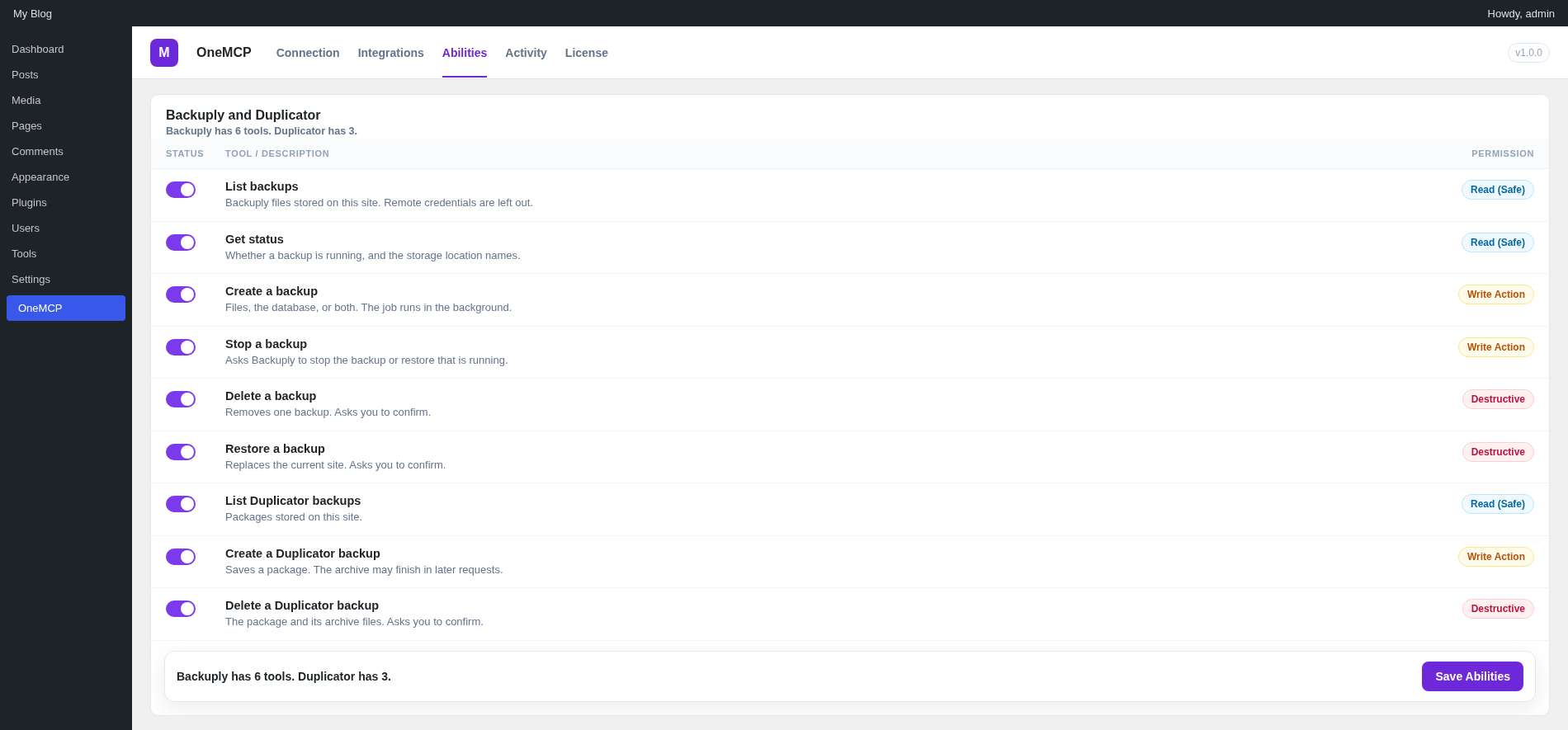
Backuply and Duplicator load from OneMCP Pro. Backuply can list, read status, create, stop, delete, and restore. Duplicator can list, create, and delete packages.
Backuply
- List backups. Files stored on this site. Remote credentials are left out.
- Get status. Whether a backup is running, and the storage location names.
- Create a backup. Files, the database, or both. The job runs in the background.
- Stop a backup. Asks Backuply to stop the backup or restore that is running.
- Delete a backup. Removes one backup. Asks you to confirm.
- Restore a backup. Replaces the current site. Asks you to confirm.
Duplicator
- List backups. Packages stored on this site.
- Create a backup. Saves a package. The archive may finish in later Duplicator requests.
- Delete a backup. The package and its archive files. Asks you to confirm.
Security, Governance & Safe Mode
OneMCP was engineered with enterprise defense-in-depth principles:
1. Safe Mode Defaults
WordPress core abilities start enabled, including content writes. On SitePad, Pagelayer abilities also start enabled. Every other write ability stays off until an administrator turns it on under OneMCP → Abilities. Any ability can be turned off.
2. WordPress Capability Verification
Every ability checks standard WordPress capabilities before execution:
get-site-info,list-content,create-content:edit_postsoredit_pageslist-plugins:activate_plugins.list-themes:switch_themeslist-users:list_users. Media tools:upload_files- Cache and SMTP tools:
manage_options. WooCommerce store changes use the WooCommerce capability checks.
Production checklist
- Serve the site over HTTPS. Application passwords on plain HTTP are for local development.
- Create a separate application password for each client so one can be revoked on its own.
- Turn off core tools you do not want the assistant to call.
- Leave Pro write tools off until you intend to use them. Backup restore and refunds are in that group.
3. Real-Time Audit Log Table
Every ability execution is recorded in the {prefix}onemcp_log table with:
id: Primary key IDability: The invoked ability ID (e.g.onemcp/create-content)user_id: WordPress user account associated with the requestok: 1 for success, 0 for failure/errormessage: Summary of input parameters and result statuscreated_at: Timestamp of the call
OneMCP Pro
OneMCP Pro is a separate plugin. Activate it beside OneMCP. It does not replace the free plugin. Its classes live in the OneMCPPro namespace. License checks and updates use https://a.softaculous.com/onemcp.
- Page builders: Pagelayer, Elementor, SeedProd, Divi, Bricks, Beaver Builder, and Breakdance.
- SEO: SiteSEO, Yoast SEO, Rank Math, All in One SEO, and SEOPress.
- SMTP: GoSMTP, WP Mail SMTP, FluentSMTP, Easy WP SMTP, Post SMTP, and SMTP Mailer.
- Cache: SpeedyCache, LiteSpeed Cache, WP Rocket, WP Super Cache, W3 Total Cache, WP Fastest Cache, WP-Optimize, and SiteGround Optimizer.
- WooCommerce and Easy Digital Downloads, including licenses and subscriptions.
- Backuply and Duplicator.
- Activity log retention of 2,000 entries and a CSV export on the Activity screen.
Pro write tools stay off until an administrator enables them. The single-site license covers one site. The agency license is the same plugin on unlimited sites.
Troubleshooting & FAQ
Handling 401 Unauthorized Errors
If your AI client reports a 401 Unauthorized status, verify the following:
- Ensure the Authorization: Basic <TOKEN> header is correctly formatted. The token should be
base64(username:password). - Check if your web server strips the
Authorizationheader. On Apache, ensure your.htaccesscontains:SetEnvIf Authorization "(.*)" HTTP_AUTHORIZATION=$1
- On Nginx, ensure
fastcgi_passforwards headers:fastcgi_param HTTP_AUTHORIZATION $http_authorization;
Plain HTTP (Local Development)
By default, WordPress disables Application Passwords on insecure HTTP connections. OneMCP includes a filter allowing Application Passwords on local staging domains (e.g. .local, .test, localhost). However, production sites must use HTTPS.
FAQ
Q: Does this replace the official WordPress Abilities API?
No! OneMCP natively registers all of its abilities into the WordPress Abilities API, making them discoverable by any other tools that consume the core API.
Q: Where can I ask a question before release?
OneMCP is not released yet. Write to [email protected] or use the contact page.